Tools
Tools is a category on the tool bar. Tap it and the left panel shows buttons for whole-page jobs: Zoom, Clean, Revert (when available), Clear, Setup, Rescan, Axes, Photos and History.
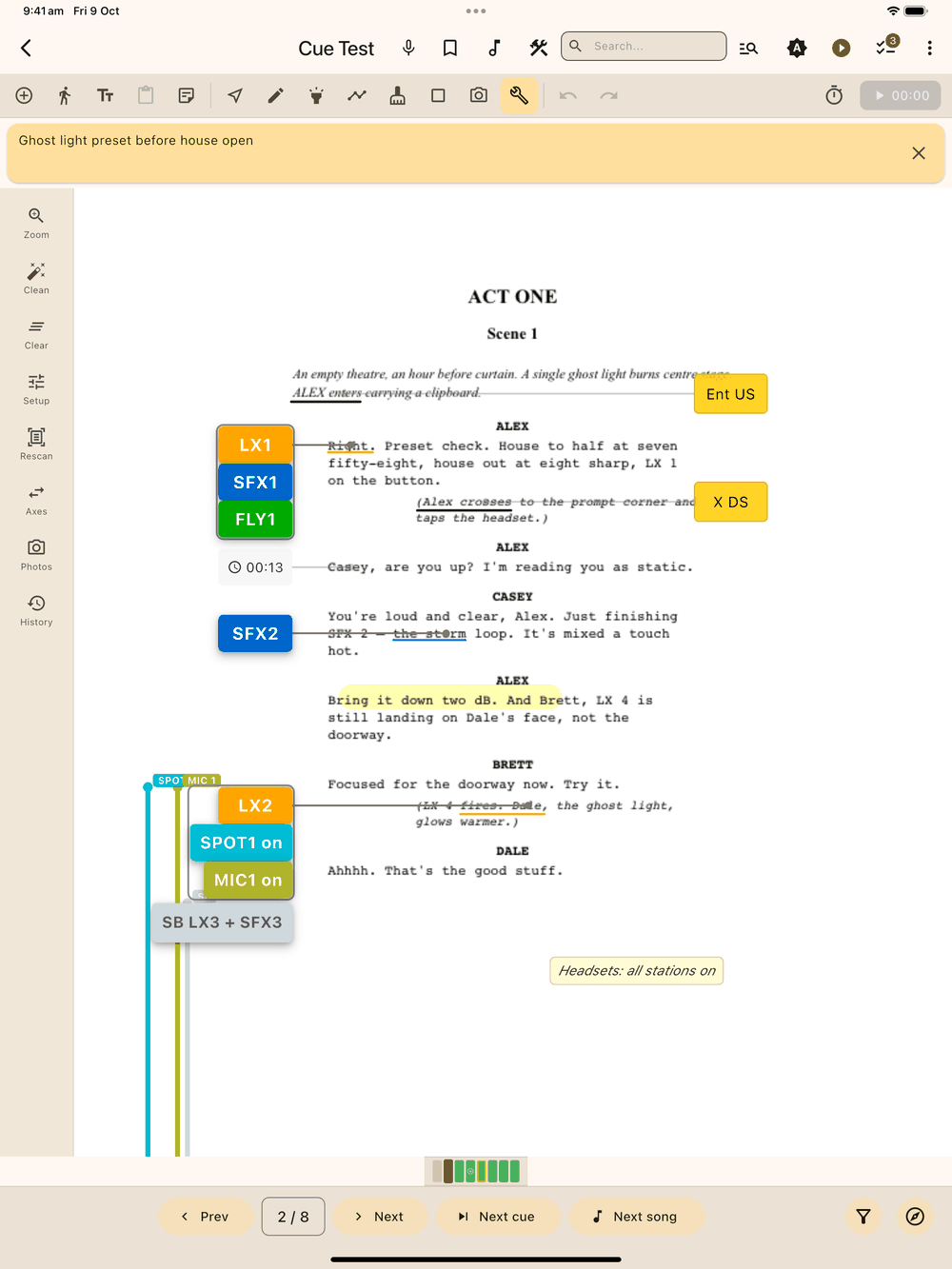
(Not to be confused with the Tools button in the app bar, which opens the Fly State, Mic State, Spot Pairing and Cue List screen. Renumbering cues lives there, in the Cue List tab’s ⋮ menu; see Renumbering cues.)
Clean
Clean lightens a scanned page’s background (coffee stains, shadows, photocopier grey) and leaves the printed text alone:
- Tap Clean . Lx1go analyses the page and shows a live preview.
- Drag the aggressiveness slider until the page looks right. Gentle keeps faint pencil marks; aggressive whitens hard.
- Confirm to save the cleaned image, or cancel to keep the original.
The original image is backed up automatically the first time you clean a page.
Revert
Restores the page’s original imported image, undoing any Clean. The button only appears on pages that have a backup of the original.
It asks first: the cleaned image is discarded (no copy of it is kept), and Revert isn’t on the Undo stack. Your cues, notes and drawings on the page aren’t touched. Cancel leaves the page as it is. To get the cleaned look back, run Clean again.
Clear
Removes every element and drawing from the current page (the page image stays). It asks for confirmation first, and goes through the undo stack, so a mistaken clear is one Undo away.
Zoom
The one button does two things:
- Long-press pins the current zoom and pan to this page.
- Tap re-applies the pinned view, or resets to 100% if none is saved.
The icon changes once a page has a pinned view. See Navigation & Zoom.
Setup
The Setup button is a shortcut to the show’s Styles screen.
Rescan
Rescan re-reads the text on every page of the show, with a progress dialog, so search results match the current page images. Run it after cleaning or replacing pages.
Because it covers the whole show it asks first (Rescan whole show?, with the page count). It can take a while on a long script, and cue word highlights follow the newly read text. Tap Cancel to leave everything as it is.
Photos
Photos opens the current page’s scene photos; see Scene Photos.
Axes
Axes sets the guide lines that line up cues and blocking with the text. See Margins & Axes.
History
Every time you save a page, Lx1go keeps the previous version in a per-page history, up to the last seven. History opens a bottom sheet listing them newest-first: each row shows when it was taken (e.g. “today 8:03 PM”) with a summary underneath (e.g. “12 cues, 3 blocking, 24 strokes”).
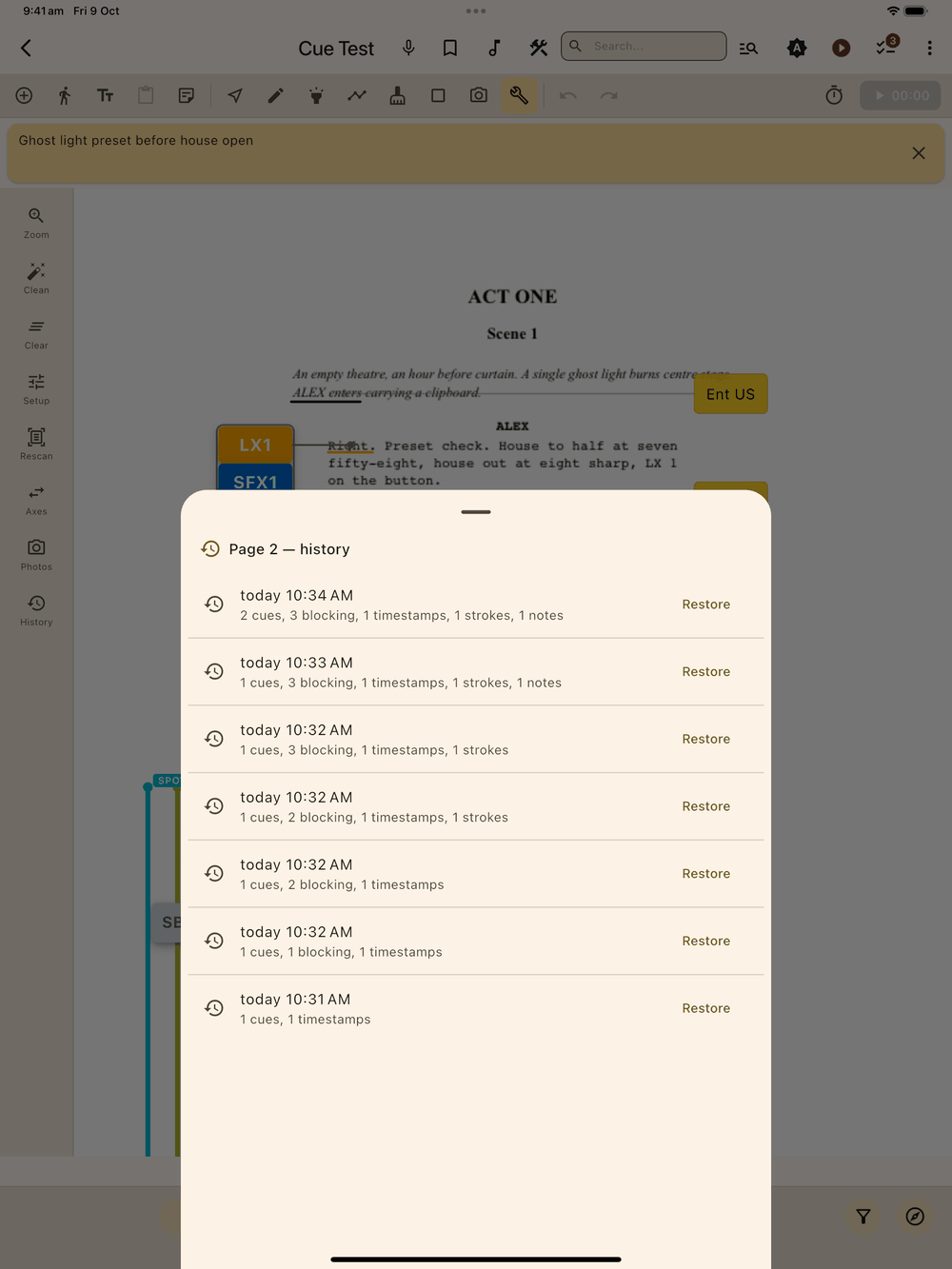
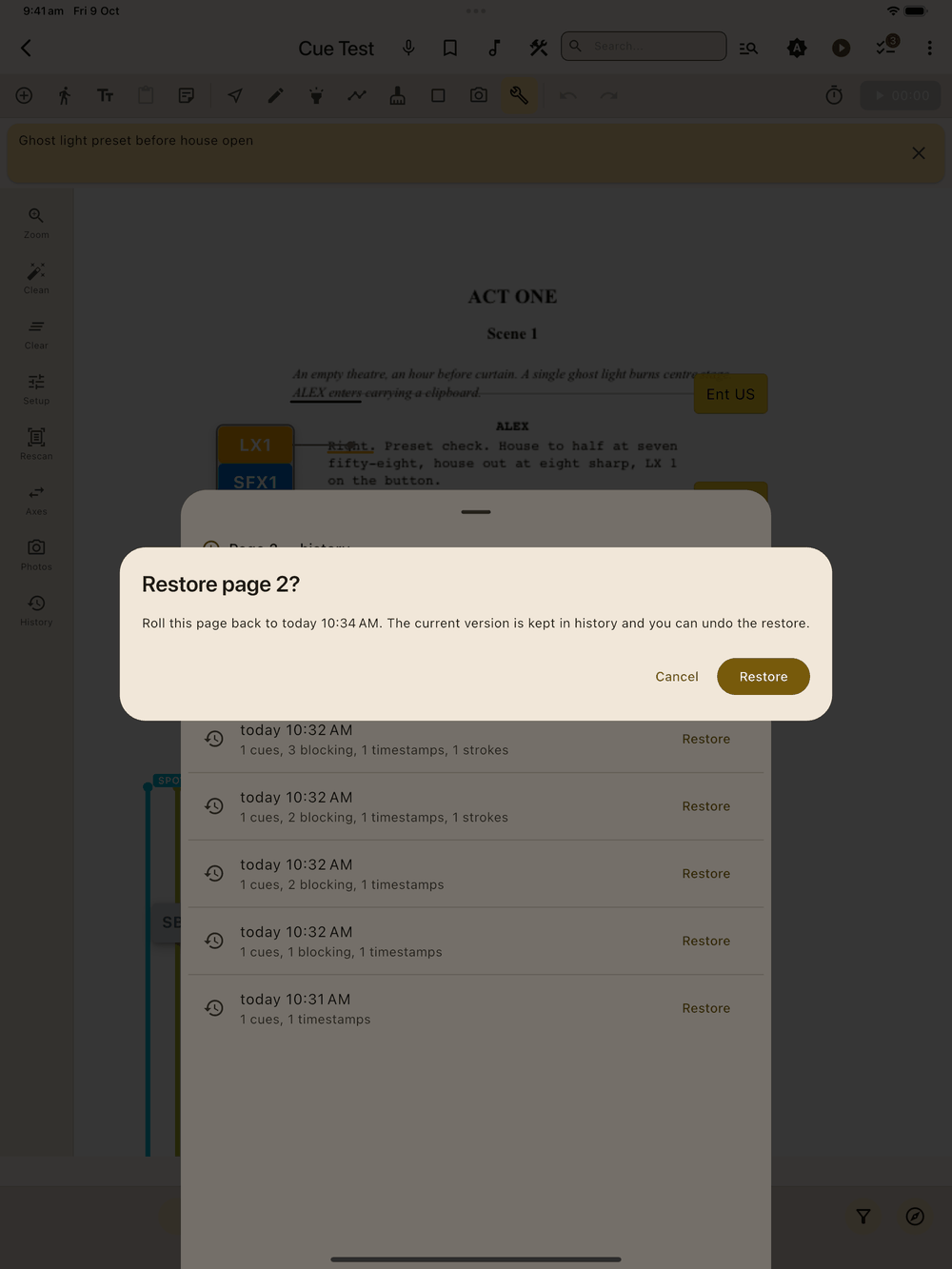
Tap Restore on any row and confirm to roll the page back to that version. The current state is kept in history first (it becomes the new most-recent entry the moment you restore), and the restore itself goes through the undo stack, so you can always get back.
History covers the marked-up content (cues, blocking, timestamps, shapes, strokes, per-page notes), not the page image itself. For a full backup, see Backup & Sharing.