Text & Timestamps
Text on the page
Tap Add Text in the tool bar (in a narrow window it’s under More tools), then tap the page where the text belongs. The first time you place text, a card at the top of the page reminds you to tap the page; tap Got it and it won’t show again. Tapping the page opens the Add Text dialog with the same Style tile you see when editing a cue or blocking, set to Note to start with. Tap the tile to pick another preset, or tap Edit beside it to change that preset for the whole show. Type the text (the box takes several lines; Return starts a new line) and tap Add. The text lands where you tapped.
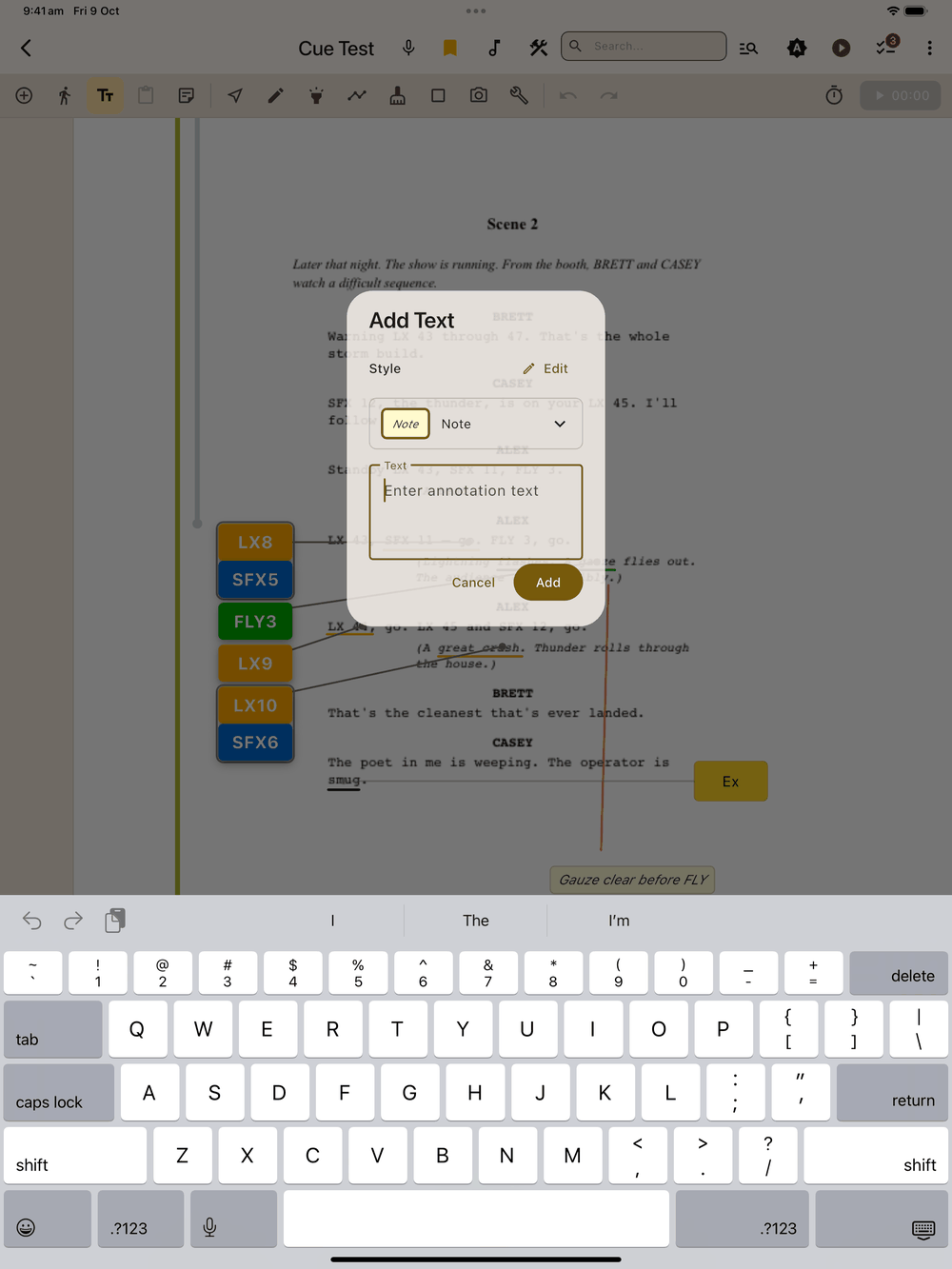
Use it for anything that isn’t a cue or a composed blocking note: warnings, quick changes, orchestra notes. Picking the Warning style makes it stand out from your cues.
The box fits the text: short text gets a snug box, and longer text grows wider until it’s 40% of the page width, then wraps onto more lines and grows taller. Nothing is cut off in edit mode, show mode or the PDF export.
If you resize the box by its handles, the size you set is kept: width and height. Editing the text or changing its style leaves the box at your chosen size. The text wraps inside it, and anything that doesn’t fit is cut off at the bottom with “…” (the PDF export cuts it off at the box edge). To go back to a box that fits the text, open Edit Text and tap Auto size (it only shows for a box you resized). Auto size can be undone.
Editing the style preset itself (in Setup → Styles or with Edit beside the Style tile) refits every note that uses it, on every page, except notes you resized by hand (see Styles).
On the page, tap to select and drag to move; the bottom menu bar shows “Text”. Double-tap it (or Edit) to open Edit Text: the Style tile and a plain text box, so you can reword the note directly. The note stays plain text and doesn’t turn into a composed blocking.
Text or Add Page Note?
Add Text puts a box on the script at a spot you choose. Add Page Note instead adds a reminder card to the strip above the page image, not tied to any line (see Page notes).
Timestamps
You drop timestamps from inside cue or blocking placement; there’s no separate tool bar button for them. While the Add Cue or Add Blocking panel is open, the left rail shows a Time (clock ) button. Tap it, then tap the page once: the timestamp is placed and you’re straight back in cue (or blocking) placement with the same panel settings, next cue number and pause state. The first time, a card at the top of the page reminds you to tap the page; tap Got it and it won’t show again. Tapping Time again instead of tapping the page skips the drop and returns you to placement.
The timestamp captures the show timer’s elapsed time at the moment you tap Time (e.g. 05:23), whether the timer is running or paused. If the timer has never been started, it places –:–.
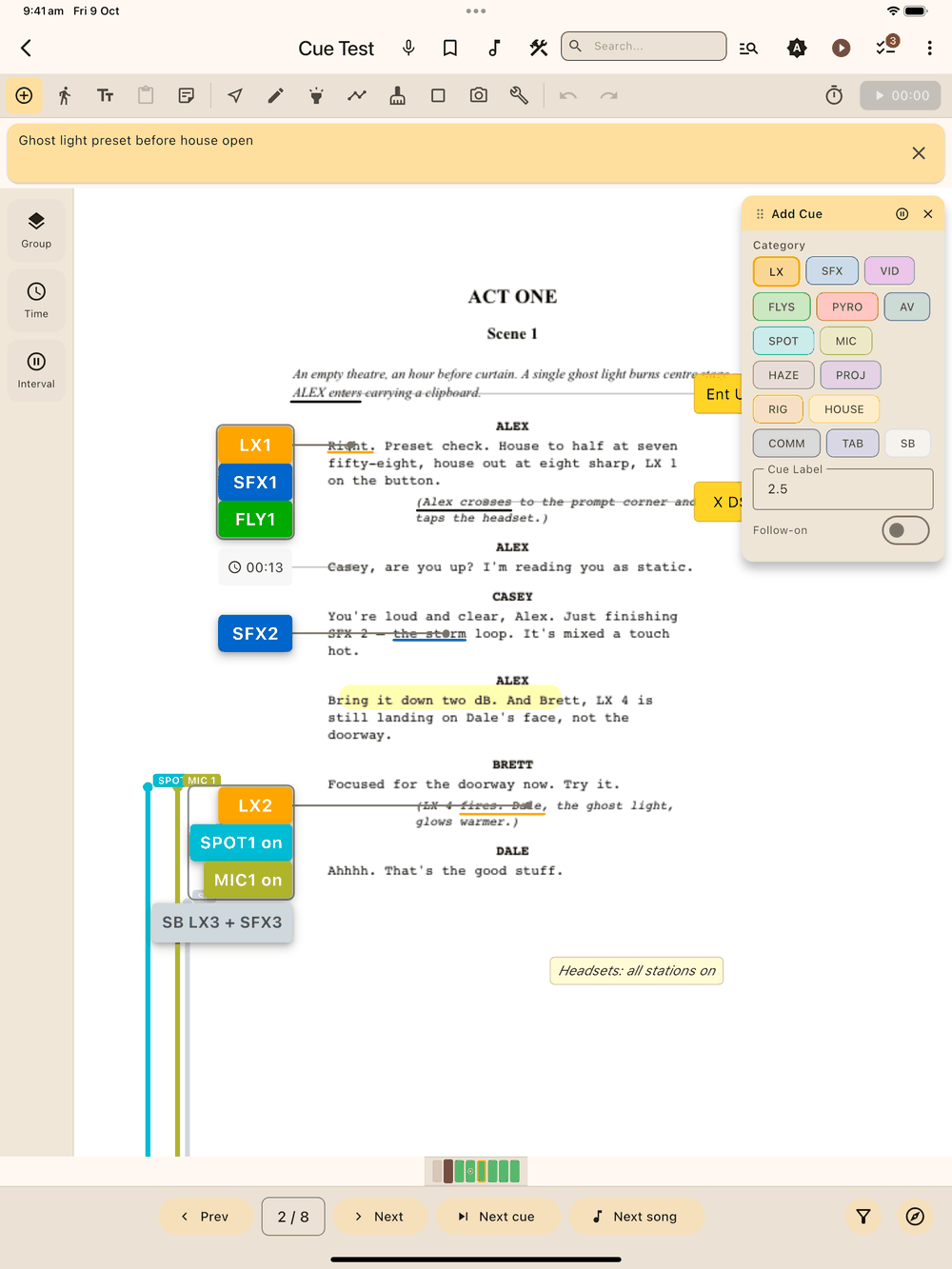
Where you tap decides which margin it goes in. Tap in the left half of the script and the timestamp sits in the left margin; tap in the right half and it sits in the right margin. Either way it keeps the height you tapped, with a faint connecting line back to that point, so it sits in the margin without covering the script.
To move a timestamp to the other margin later, double-tap it (or select it and tap Edit) and tap Move to other side . It stays at about the same height, moving just clear of anything already there. Undo puts it back.
Timestamp placement follows the same gutter rule as cues and blocking: a tap in the gutter (the margin outside the show’s left/right axes) never drops a new timestamp. It selects an existing element there if your tap lands near one, otherwise it does nothing. Anchors only drop in the text area between the two axes. Add Text is exempt from this rule and can go anywhere on the page.
Drop timestamps at act tops, scene changes, and interval to build a timing map of your show across rehearsals. The show timer is at the right end of the tool bar (see Show Mode).
Timestamps can be duplicated from the bottom menu bar’s Duplicate button. They all use the shared Timestamp style (dark text on a light grey background) so they’re easy to read against the script image. There is no per-timestamp style picker. Edit the Timestamp preset in Setup → Styles to change the look of every timestamp in the show.
Auto-stamp on Next Page
At the right end of the tool bar, beside the show timer, is a timer icon, outlined when off and filled when armed. When armed, tapping Next Page on the edit screen stamps the outgoing page with the current elapsed show time, then moves on. The stamp is placed near the bottom of the page on the blocking side, with a faint connecting line pointing inward toward the script. Pages that already have a timestamp are skipped. The stamp is a normal timestamp; move, edit, or delete it like any other.
Auto-stamp is session-only: closing the app disarms it.