Styles
Styles keep your prompt book consistent. They’re per-show and travel with exports. Open the Setup screen from the Tools category in the left panel (or from a panel’s Edit shortcut).
Style types
- Element styles: the full look of cues, blocking, text notes
and timestamps in one preset. Each cue category points at its own
element style (edit
LX Cueonce and every LX cue in the show updates). Blocking uses one default for the whole show. They live on the Styles tab. See Element style properties below for everything you can set. - Shape styles: fill colour, border, opacity and corner radius presets for the Shape tool. You start with three presets named for what they mark (Blocking, Highlight, Area), one per cue category (LX, SFX, VID, FLYS, PYRO, AV) for quick tagging, and plain colour presets (Red, Blue, Green, Yellow, Purple, Orange) for anything else.
- Highlight styles: colour, width and opacity presets for the highlighter.
- Line styles: colour, width, dash pattern and end cap (plain or arrow) presets. The Pen and Line panels only take the colour from them, one swatch per colour. The whole preset (colour, width, type and opacity) is applied when you pick it in a stroke’s Edit panel. The top of the Lines tab has Line menus: the sizes offered by the Pen and Line panels’ Thickness button and the Line panel’s Arrow button. Tap a size to change it, tap Add for a new one, or long-press a size to remove it. Each list keeps at least one size, and lines already drawn keep their size when you remove it. Reset puts back 1, 2, 3, 5, 8 for thickness and 10, 16, 24 for arrows.
- Fly Lines: names, numbers and short descriptions for the stage’s rigging (e.g. “Grand Drape on 4”, “Legs 5-10”, “Cyc on 12”). FLY cues refer to these, so when you rename or renumber a line, every FLY cue using it updates straight away.
- Gel Library: colour swatches from popular gel ranges (e.g. Lee, Rosco), plus room to add your venue’s own gels. LX cues refer to gels by code, and colour cells show both the code and a swatch.
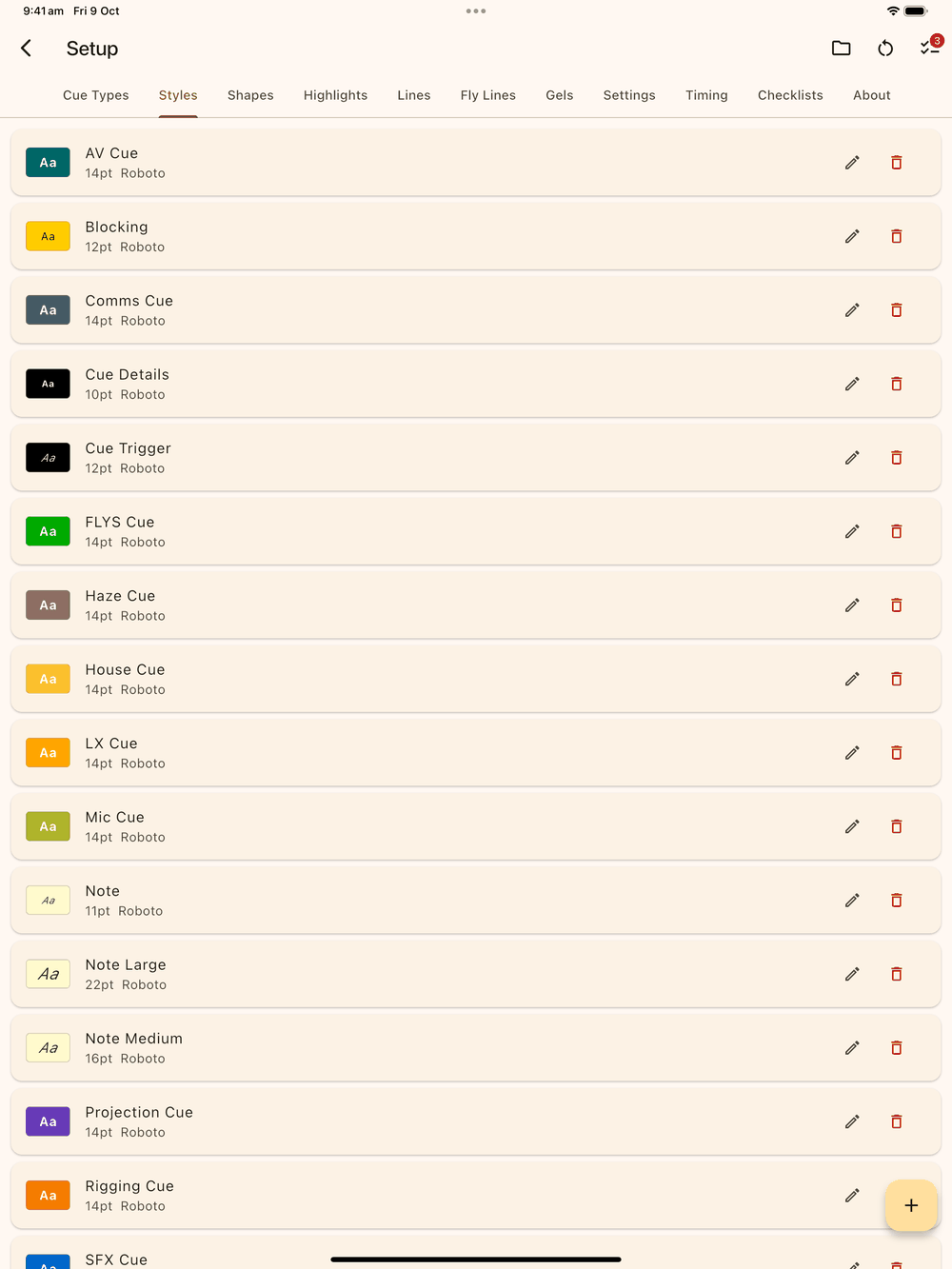
Editing a style updates everything that references it.
Reset to defaults
The restart icon in the Setup app bar restores the shipped
defaults for the tab you’re on (Cue Types, Shapes, Highlights, Lines,
Fly Lines or Gels). On the Styles tab the same icon opens a menu of
style presets to apply instead. Custom styles you added on that tab
are removed, and elements that used a custom style go back to their
own inline style. It asks before it runs. You can’t undo it from inside
Setup, but a .lx1 backup or a page snapshot will put
things back.
Cue categories
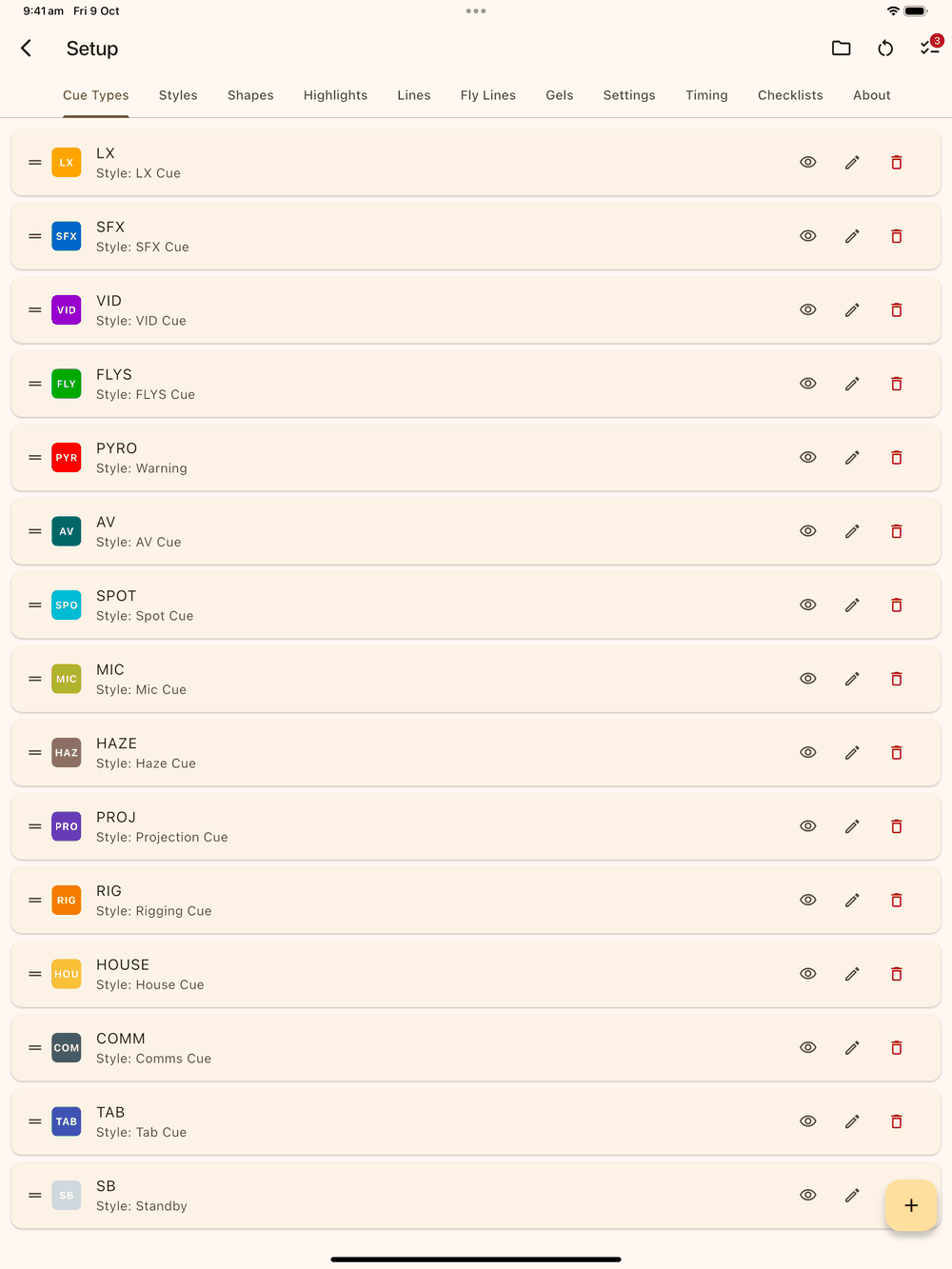
Cue categories (LX, SFX, VID, FLYS, PYRO, AV and the rest) are managed on the Cue Types tab: rename them, change their colours, link each to a style, or tap the eye to hide one from the Add Cue picker.
Element style properties
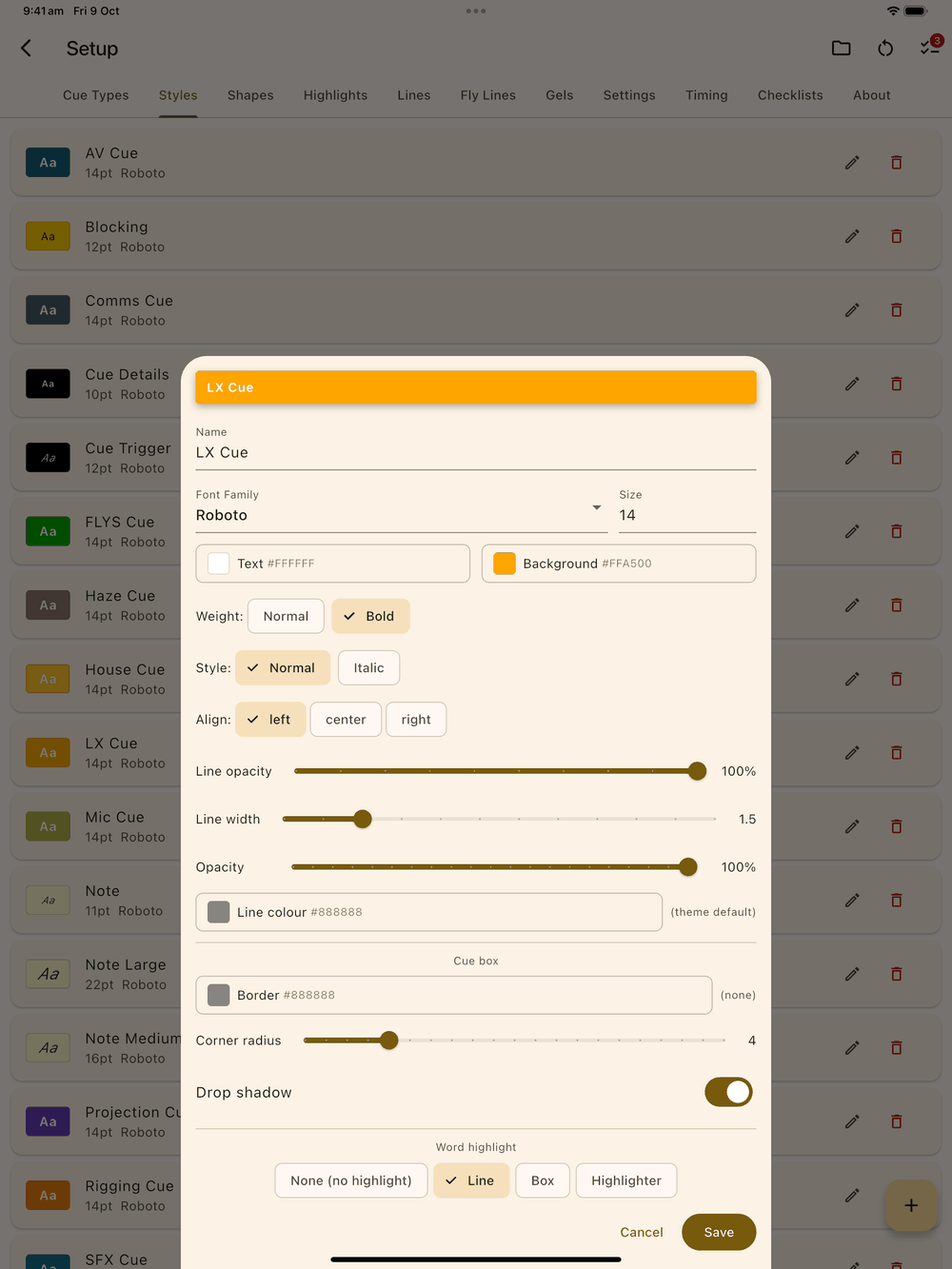
Every element style preset has the same settings, which you change in the Element style editor (Setup → Styles → tap a preset):
- Name: the label shown in the picker (e.g.
LX Cue,Stage Blocking,Timestamp,Note). - Font family: the typeface for the label text. Defaults to Roboto; Courier, Arial, and Times New Roman ship pre-selected.
- Font size: the label’s point size (type a number).
- Text colour: the label’s text colour, as a hex code.
- Background colour: the coloured box behind the label. This is also the swatch used for the category chip in the Cue list and category badges, so editing it updates every chip too.
- Weight: Normal or Bold.
- Style: Normal or Italic.
- Align: where the text sits inside the box: left, centre or right.
- Line opacity: how solid the connecting line from the element box to its anchor on the page looks (0.10 to 1.00). Blocking and Timestamp presets default to 0.35 so their lines stay legible next to solid cue lines; cues default to 1.00.
- Line width: the connecting line’s thickness in logical pixels (0.5 to 6.0). The endpoint dot scales with the stroke so it stays visible at any width.
- Line colour: the connecting line’s colour, as a hex code. Empty means “use the theme outline” (the default that adapts to light/dark mode). A custom colour shows a Reset button that clears it back to the theme default.
Opacity
Every text style has an opacity slider (0 to 100%) that fades the whole element, box and text together. Use it to tone down cut cues without deleting them, or to fade old timestamps.
Highlight style: None
The highlight-style dropdown has a None option at the top. Pick it to switch off word highlighting for every cue or blocking that uses this preset. The element still shows, but with no underline, box or highlighter on the words.
Per-element overrides
Double-tap any element on the page to override just that element’s look without touching the shared preset. The properties panel shows the same fields as the preset above, plus a connecting line on/off toggle. The line is always straight, and its width, colour and opacity still come from the preset.