Search
Search works on the text Lx1go indexed when your PDF was imported, so it finds dialogue and blocking anywhere in the script.
On-page search
Type in the search field in the app bar and matches on the current page light up as you type, which is handy for finding the line you’re about to put a cue on. Clear it with the ✕ in the field.
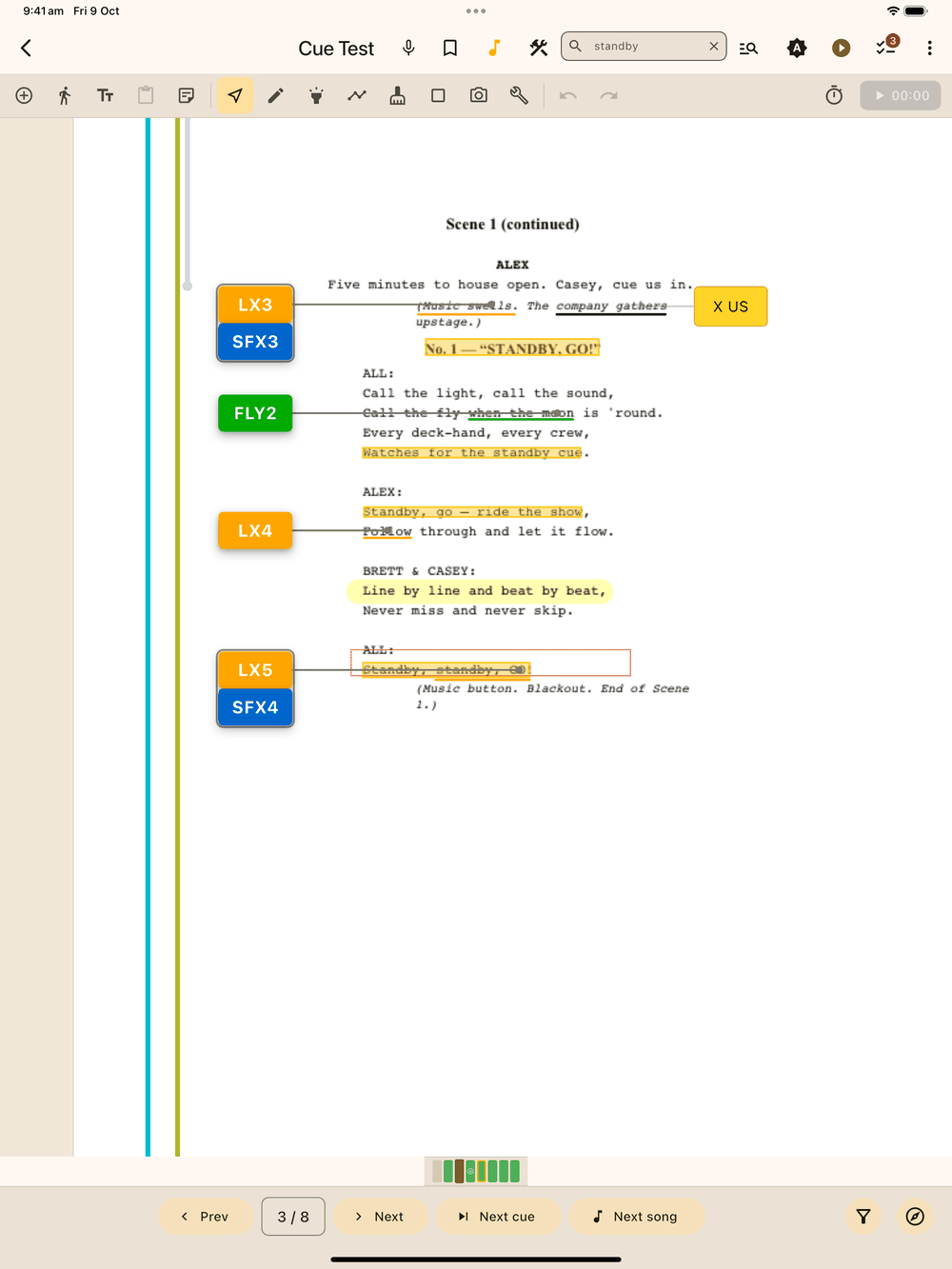
In a narrower window (including iPad mini in portrait) the field is folded away behind a search icon . Tap it to open the field, and tap ✕ to close it again.
Search ignores upper and lower case, and a match has to sit on one printed line. A phrase that wraps onto the next line won’t be found.
Whole-script search
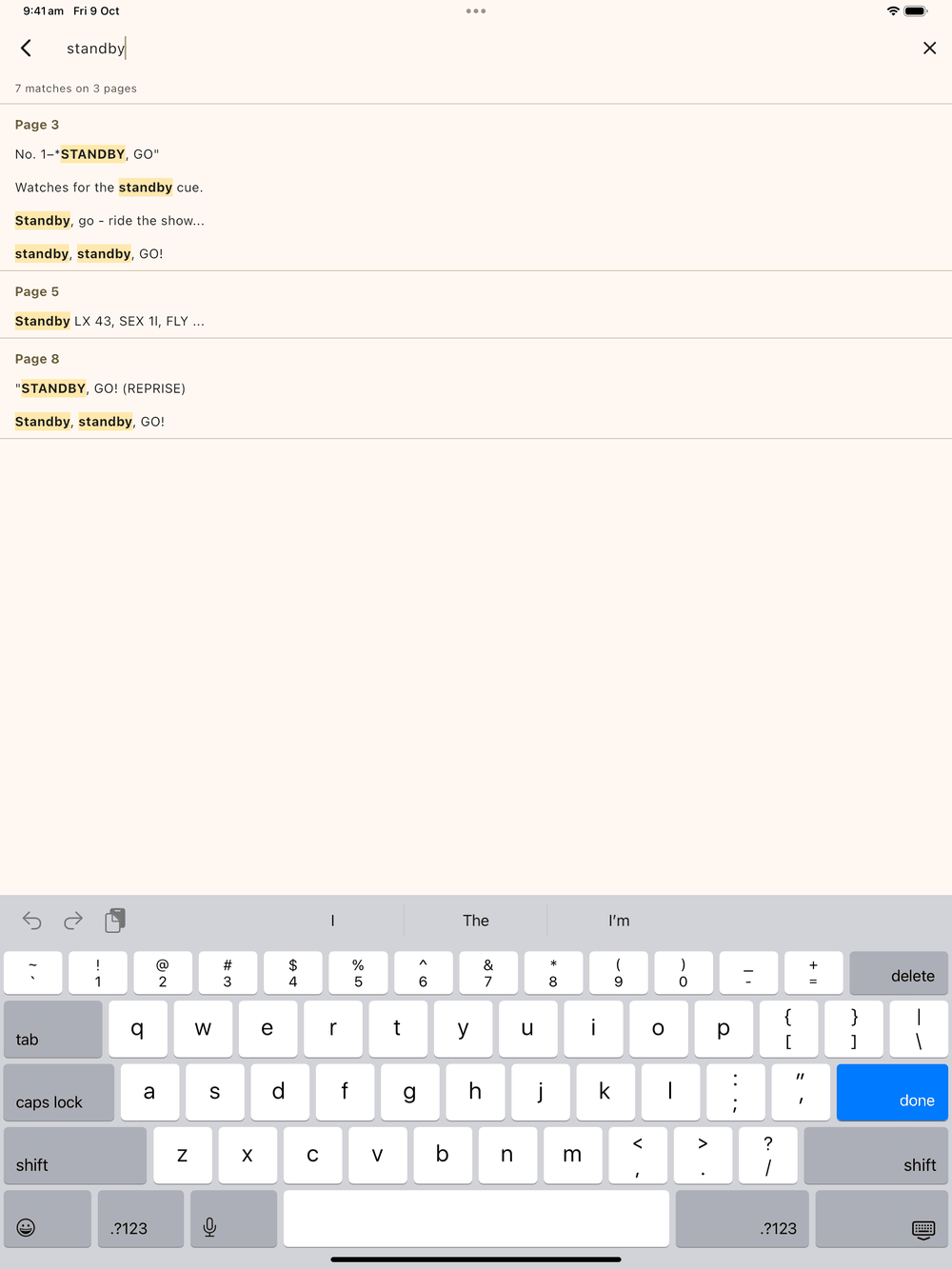
Press Enter in the search field, or in a wide window tap the script search button next to it, to open the results screen for the whole show. It has its own search box, so you can keep refining the words there. Results are grouped under Page N headings with the matching words highlighted, and a count at the top reads “N matches on M pages”. Tap a result to jump to that page with the match highlighted.
How pages are indexed
If a page already has text in it (any script exported from Word, Final Draft, Google Docs, or similar), Lx1go copies that text straight from the file during import. It’s exact, and no OCR is needed.
For scanned or image-only pages, text recognition (OCR) runs on the page image instead, so it’s only as accurate as the scan. If recognition fails on a page, search won’t find anything on it.
Either way, search works the same for on-page search, whole-script search, and highlight-on-tap.