Mic State
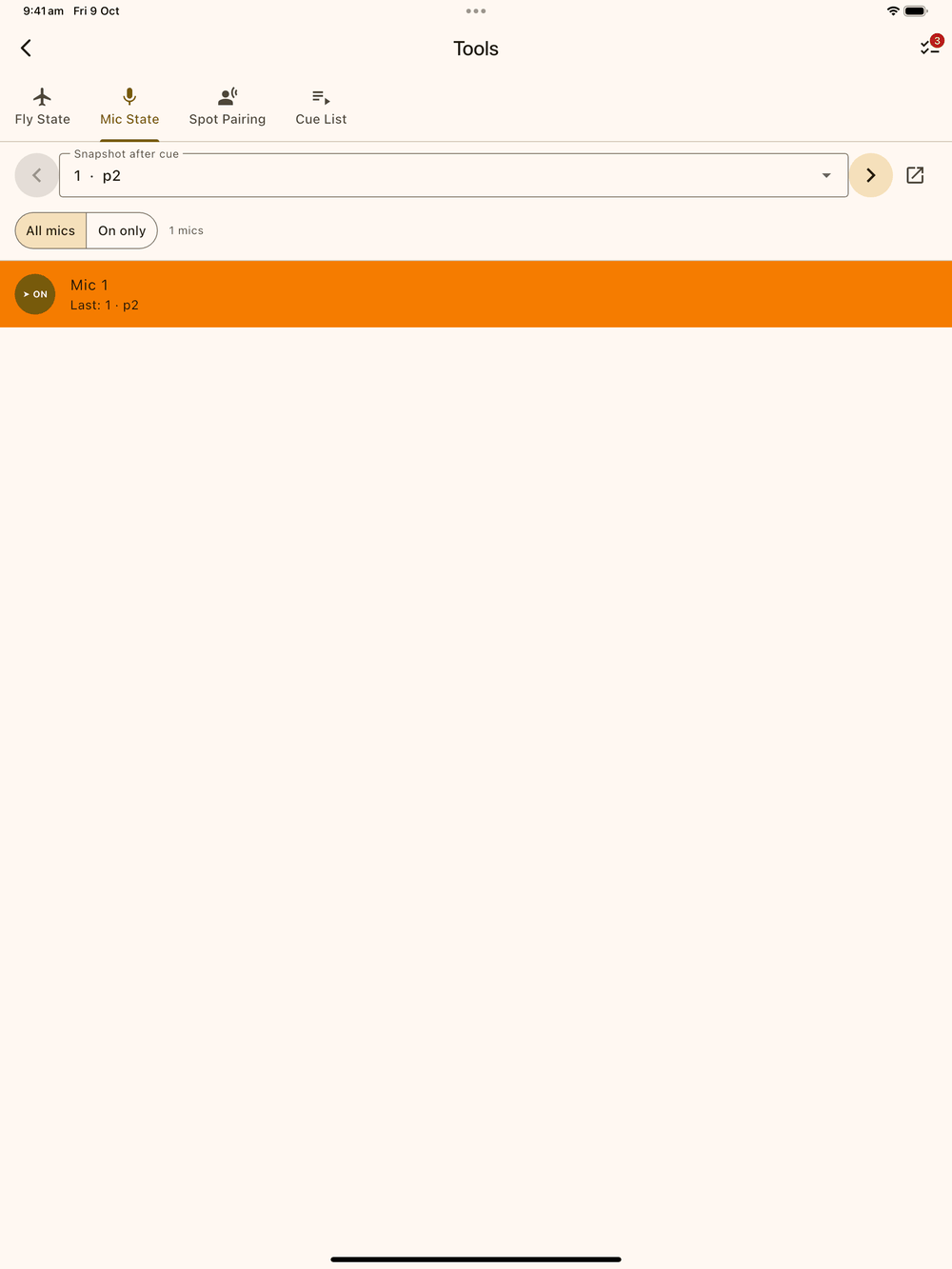
The Mic State screen shows which mics are live right now, and which one you’re about to lose or gain. It goes through every MIC cue in show order and shows each mic’s on/off state at a snapshot cue you pick.
Opening the screen
It’s a tab of the Tools hub in the edit-screen app bar (⋮ → Tools in a narrower window), alongside Fly State, Spot Pairing and the Cue List.
Snapshot picker
The top bar has two prev/next arrows ( ) around the Snapshot after cue dropdown, listing every MIC cue in show order (cue label + page). Pick a cue to see every mic’s state after that cue has fired. The Open page button beside the picker jumps straight to that cue’s page in the script.
If the show has no MIC cues yet, the screen says so and points you to the cue placement rail: pick the MIC category from Add Cue to place one.
Filter
Below the picker is a two-way toggle.
- All mics: every mic number that has ever appeared in a MIC cue, whatever its state. The count on the right reads “N mics”.
- On only: hides anything that isn’t currently live. The count on the right reads “X of Y on”.
What each row shows
Every mic number the show has ever used gets a row:
Row colour: the whole row is tinted by the mic’s state after the snapshot cue, the same in light and dark mode:
Row Meaning Yellow The mic is on. Orange This cue just switched the mic on. Pale yellow This cue just switched the mic off. No tint (black in dark mode) The mic was already off. Text on yellow and orange rows is dark so it stays readable. These are the same colours Fly State uses for IN/OUT, so the two screens read the same way.
State badge: ON (primary colour) or OFF (muted). Badge text is white so it reads on any row colour. A mic switched by the snapshot cue itself gets a ➤ ON or ◀ OFF prefix. The arrows point in opposite directions so you can tell at a glance which way the mic just went. A mic already ON from an earlier cue shows ⏸ ON, meaning it’s been live for a while.
Mic number, from the cue’s
Mic #field.Subtitle: “Last: · p” for the cue that last moved the mic, or “Preset — no cue has moved it yet” for a mic that only appears later in the show than the snapshot cue.
How mic state is tracked
A mic starts OFF at preset. Unlike fly lines, there’s no preset list
in Setup: a mic is just “not yet touched” until a MIC cue mentions it. Every MIC cue up to and including the snapshot cue
applies its State field (on / off) to the mic number in its
Mic # field. The X (crossover) option is there to match the
SPOT state field, but it doesn’t move a mic on this screen.
Mics don’t hand off between operators the way a follow spot does.
Mic trail on the page
Like SPOT, a MIC cue’s on/off pair draws a coloured trail line down the cue margin from the “on” cue to the “off” cue. You see it on the page in edit and show mode, and in the exported PDF. A mic still on at the end of the show trails all the way to the last page. See Cues for the shared SPOT/MIC pairing and trail-stripe behaviour.