Margins & Axes
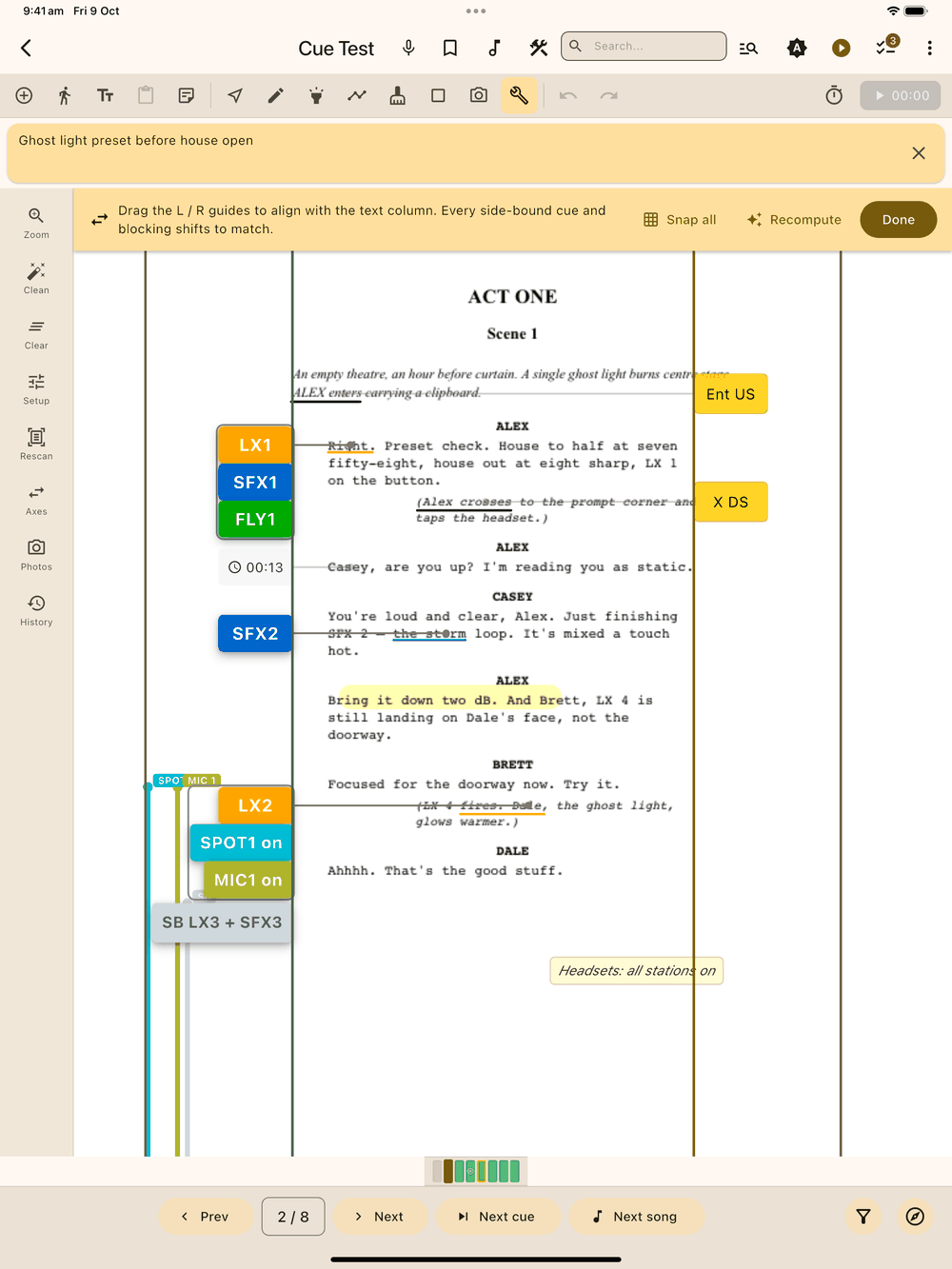
Every show has four vertical guide lines: Far Left (FL), Left (L), Right (R) and Far Right (FR). L and R mark the left and right edges of the printed text column. The space between FL and L is the left gutter, and between R and FR the right gutter. Cues, cue groups, blocking and timestamps sit tight against L or R:
- A left-side element’s right edge sits on L, so it sits in the left gutter right next to the text. A very wide element grows leftward and may run past FL or off the page image; the canvas widens to show it.
- A right-side element’s left edge sits on R.
Cues and cue groups go on the show’s cue side (Settings); stage blocking and timestamps go on the other side.
A cue group wraps onto more lines when it doesn’t fit its gutter. On the left it wraps between FL and L, and every line ends on L, so the lines are flush against the text with a ragged left edge. On the right it wraps between R and FR, with every line starting on R. Reordering cues in a group can re-wrap it, but the edge against the text never moves.
If you haven’t set FL or FR, Lx1go places them at a reasonable width beside the text. They follow L and R when they move, and are used for group wrapping, the gutter colour, the canvas, and PDF export. Drag a guide to set your own position.
Drag FL out into the margin (or past the page image) to give wide left-side groups more room before they wrap.
Import sets L and R automatically from the text on your pages, so they’re ready to use straight away. (An older show that never had them set gets the same treatment the first time you open Axes.) Tap Axes in the Tools panel to fine-tune them:
- Drag any guide horizontally to move it. The change applies immediately to every page, and every snapped element shifts with it. FL accepts negative positions (the guide can sit to the left of the page image) and FR can sit past the right edge.
- Snap all re-hooks every cue, blocking and timestamp in the show onto the axes. Use it on older shows where elements were placed before axes existed. It confirms first, then walks every page.
- Recompute recalculates L and R from the page text if you’ve rescanned pages after import.
- Done exits axis-edit mode.
Elements you’ve manually dragged sideways stay put and are no longer snapped to the axis. Moving an element up or down won’t unhook it, so you can adjust its vertical position freely. To put one element back on its axis, select it and tap Align ( / ) on the bottom menu bar.
When you drag a guide or tap Recompute, every cue, blocking and timestamp still snapped to that axis moves to its new spot right away, and the new position is saved to the show at the same moment. Reopen the page, or restart the app, and everything is where the guides put it.