Getting Started
The home screen
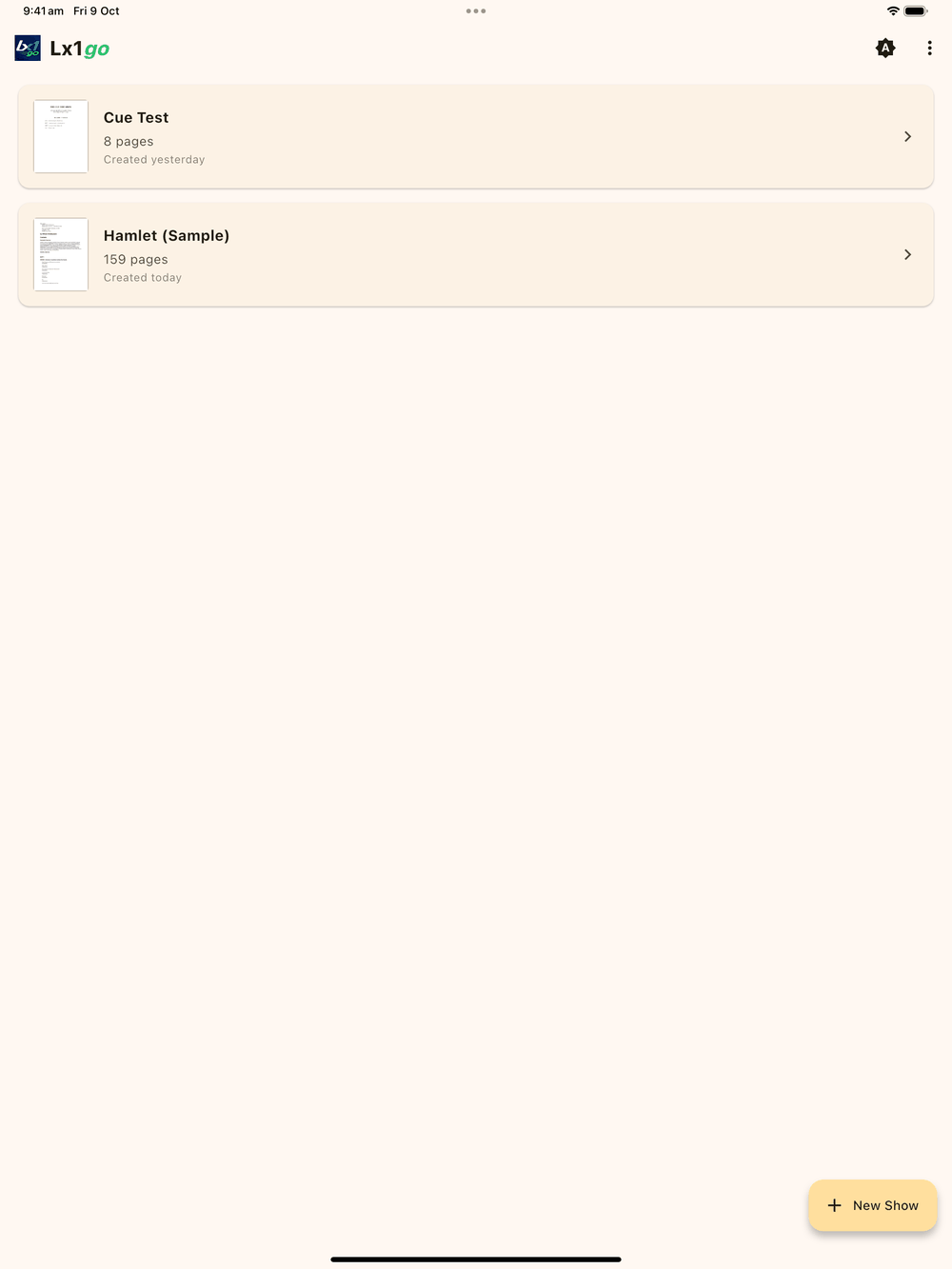
The home screen lists your shows. Each show is a complete prompt book with its own script pages, cues, blocking, drawings and styles.
If there are no shows loaded (a fresh install where the sample was
deleted, or a new device before the first restore), the home screen
shows two big buttons in the middle of the page: Load PDF to
start a new prompt book from a script, and Restore Show to bring
one back from an .lx1 backup.
- Tap a show to open it in the edit screen. The most recently opened show floats to the top of the list.
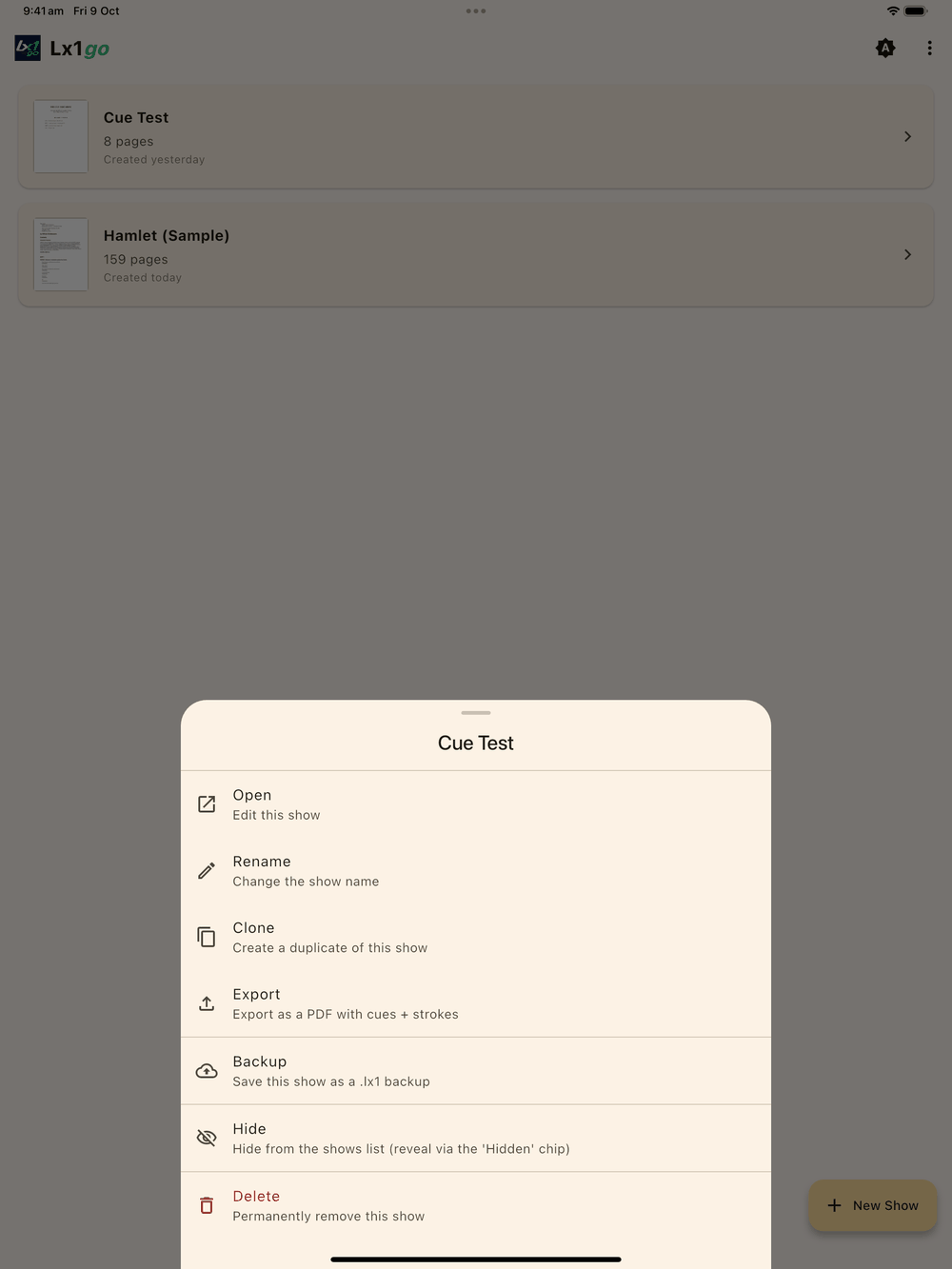
- Long-press a show for options: Open, Rename, Clone, Export,
Backup (
.lx1), Hide, and Delete. - New Show (bottom-right button) starts a new show by importing a PDF script. You can add blank pages later from inside the show (⋮ menu → Add blank page, or Insert blank page in Page thumbnails; see Managing Pages).
The home screen’s app bar has two buttons:
- The theme icon cycles between system, light, and dark themes; its icon changes to show the current choice ( light, dark).
- The ⋮ menu offers Restore from Backup (see Backup & Sharing), Check for Updates , and About (shows the installed version). Back up each show from its long-press menu.
Hiding shows
Long-press a show and choose Hide to tuck it away from the main list without deleting anything. It’s handy for past productions you want to keep but don’t want to scroll past every day. When at least one show is hidden, a Hidden (n) filter chip appears at the top of the shows list; tap it to reveal hidden shows (they appear dimmed at the bottom of the list), then long-press one and choose Unhide to bring it back.
Updating the app
⋮ menu → Check for Updates compares your installed version against the latest release and, when a newer one exists, shows its release notes. Tap Download to fetch the update, with a progress bar while it downloads.
- On Android, confirm the installer prompt. The first time, Android asks you to allow this app to install updates; grant it once and future updates are two taps.
- On iPadOS / iOS, updates come through the App Store like any other app. The Check for Updates entry is Android-only.
The sample show
On first launch Lx1go creates Hamlet (Sample), a complete 159-page script with example cues and blocking already placed on pages 3 to 5, and a blocking on page 1 explaining the sample. Use it to try things out without risking a real show, and delete it whenever you like (long-press → Delete).
Importing a PDF script
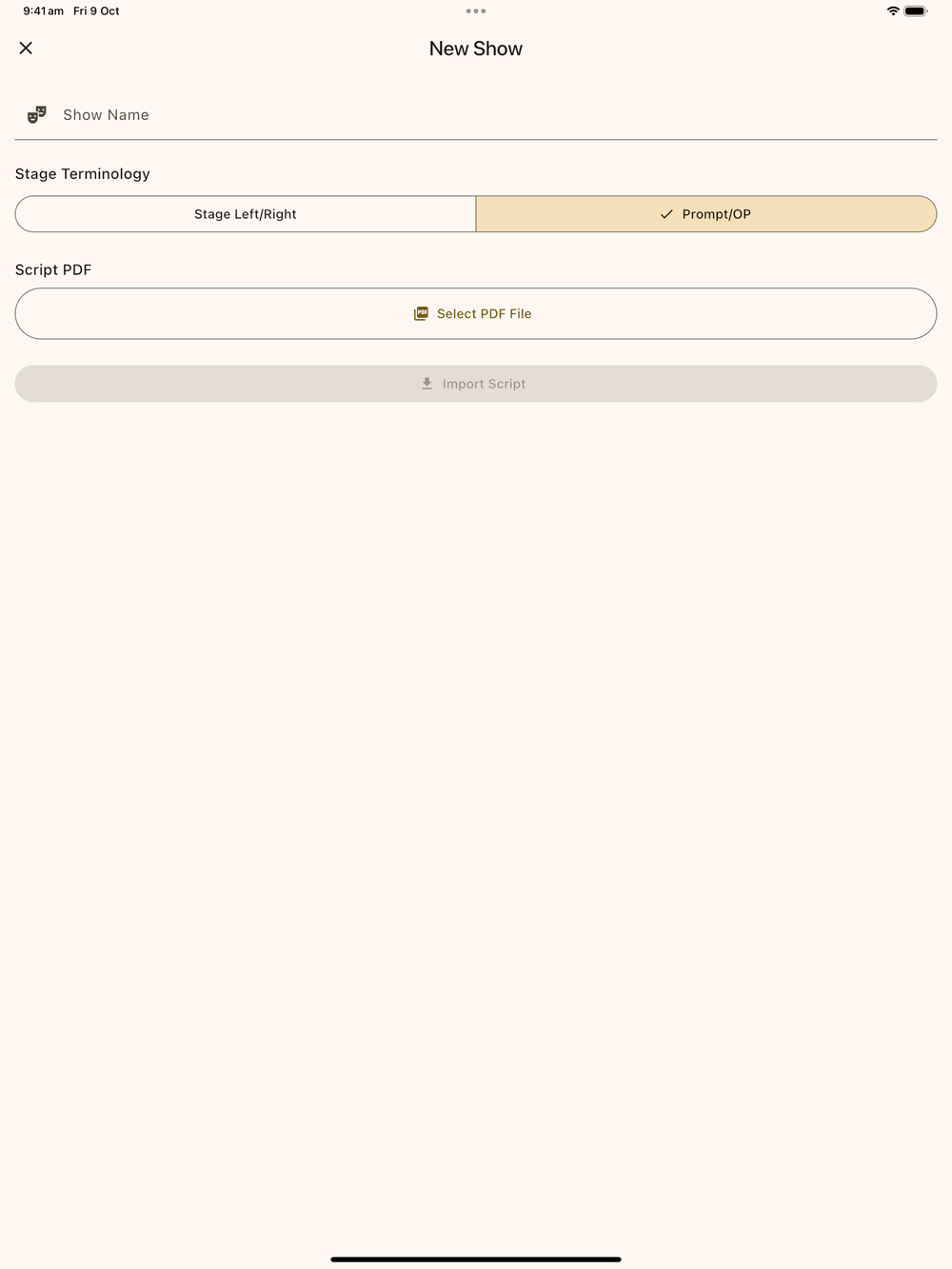
- Tap New Show .
- Enter the Show Name.
- Pick your Stage Terminology: Stage Left/Right or Prompt/OP (see Settings).
- Tap Select PDF File and choose your script.
- Tap Import Script. Import runs in two phases, shown with progress: Extract renders each PDF page to an image, then Index reads the text on every page so search works.
Large scripts take a few minutes to index; you can cancel at any time.
Deleting shows
Long-press a show and choose Delete. A Delete Show? dialog asks
you to confirm. Deleting permanently removes all of the show’s pages,
cues and page versions. You can’t undo this, so
back the show up first if in
doubt. .lx1 backups you’ve saved elsewhere are not affected.