The Edit Screen
When you open a show you land in the edit screen, where you do all your mark-up.
Layout
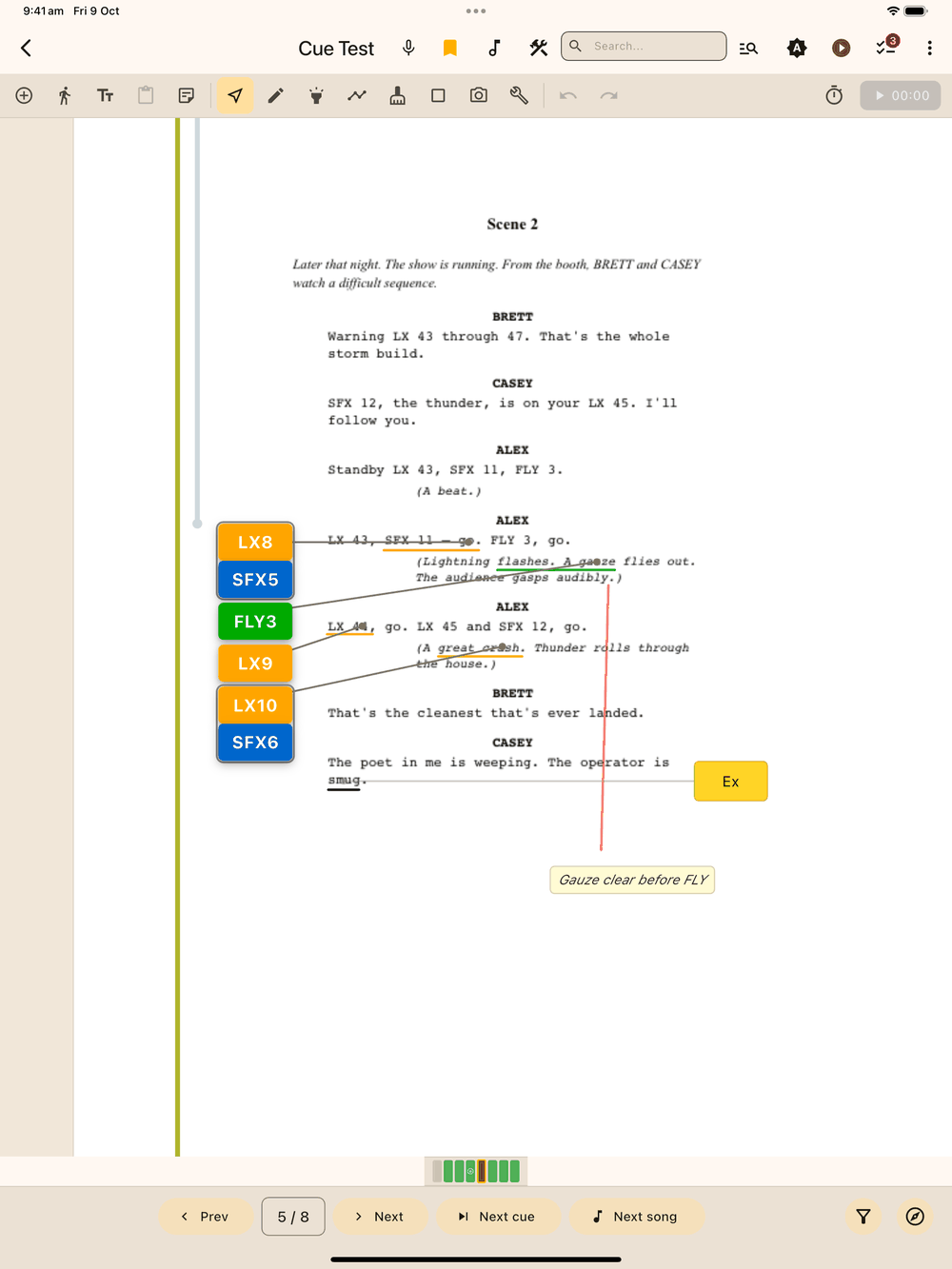
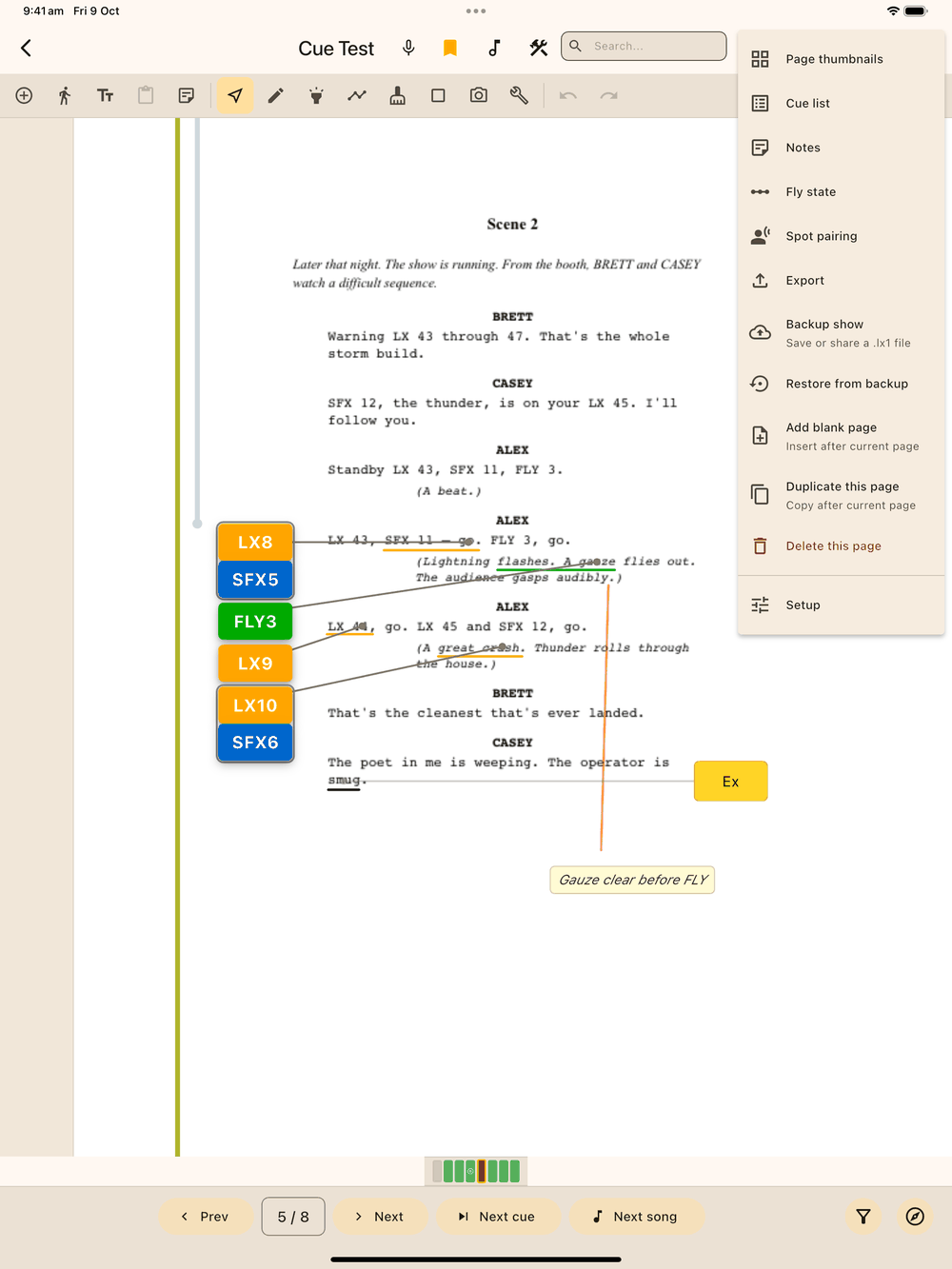
- App bar (top): back (it asks before leaving the show, and so does the Android back gesture), show title, the mic (record a voice note, see below), bookmark toggle, the music note (tag the page as a song), the Tools hub, search field, whole-script search, a theme icon that cycles System → Light → Dark, a play button (enters show mode), Tasks, and the page options menu (⋮). The menu holds Page Thumbnails (the page grid, where you import, scan, split and duplicate pages), Cue List, Notes, Fly state, Spot pairing, Export, Backup show (save as .lx1 or share it), Restore from backup, Add blank page (after the current page), Duplicate this page (a copy after the current page), and Delete this page (the current page, permanently). Setup is the last item in that menu, below Delete this page, so it isn’t mistaken for Tasks. The timer icon beside the play button turns auto-stamp mode on and off during show mode.
- Tool bar (second row): quick-add buttons for Cue, Blocking, Text, Time, then the drawing categories (Select, Pen, Highlight, Line, Eraser, Shape, Tools), and Undo / Redo. The show timer sits on the right. Select (the cursor icon, leftmost) is the default tool. With it, a tap picks up an existing stroke, shape or element instead of drawing a new stroke.
- On narrower tablets (for example an iPad mini, a 10" Android tablet in portrait, or the app in a pop-up window) the bars rearrange to fit: the search box becomes a 🔍 button, Tools and Theme move to the top of the ⋮ menu with Setup at the very bottom of it, and Add Text, Paste, Add Page Note, Line and Photos move into the tool bar’s … More tools button. Nothing is removed.
- Left panel: options for the selected drawing category (pen colours, line styles, shape styles, tools). While you’re placing a cue or blocking it changes to a placement rail: Time (drop a timestamp) and Interval (mark the interval) in both, plus Group for cues. Otherwise it goes blank while a placement panel is open, since drawing tools don’t apply then.
- Page: the script page itself.
- Page indicator bar (bottom): one segment per page. Green segments contain cues, amber-outlined segments are bookmarked, a small pause symbol marks the interval page, and the tall segment is the current page. Tap any segment to jump there.
- Page controls (very bottom): previous/next arrows and the page counter. Tap the counter (e.g. “12 / 159”) to type a page number. On the right are the filter button (a funnel, see Filtering the page) and Navigate.
- On Android the system navigation bar is hidden here and in show mode, so it never covers the page controls. Swipe up from the bottom edge to bring it back for a few seconds.
Voice notes
Tap the mic at the top, next to the bookmark, to record a voice note for the page you’re on. The mic turns into a red stop button with a running timer. Tap it again to stop and save. The note shows on the page alongside your text notes, where you can play it or delete it (it asks first). Every voice note in the show is listed in Navigate → Voice, sorted by time; tap one to jump to its page.
Starting and ending the show
Page 1 has a panel to set curtain up and start the timer, and the last page has End show. Both work the same in edit mode and show mode; see Starting and ending the show.
One finger, two fingers
One rule runs the whole edit screen:
- One finger, or the S Pen / Apple Pencil, always belongs to the active tool: drawing a stroke, placing a cue, selecting an element.
- Two fingers always move and zoom the page (pinch and drag).
A one-time hint explains this the first time you open a script.
Selecting elements
Switch to the Select tool (cursor icon, leftmost on the tool bar, and the default) and tap anything on the page: a cue, blocking, timestamp, shape, or drawn stroke (pen, highlight, whiteout, or straight line). A menu bar appears at the bottom with Edit, Duplicate, and Delete for whatever is selected. Tap the × on the menu bar, or tap empty page, to deselect.
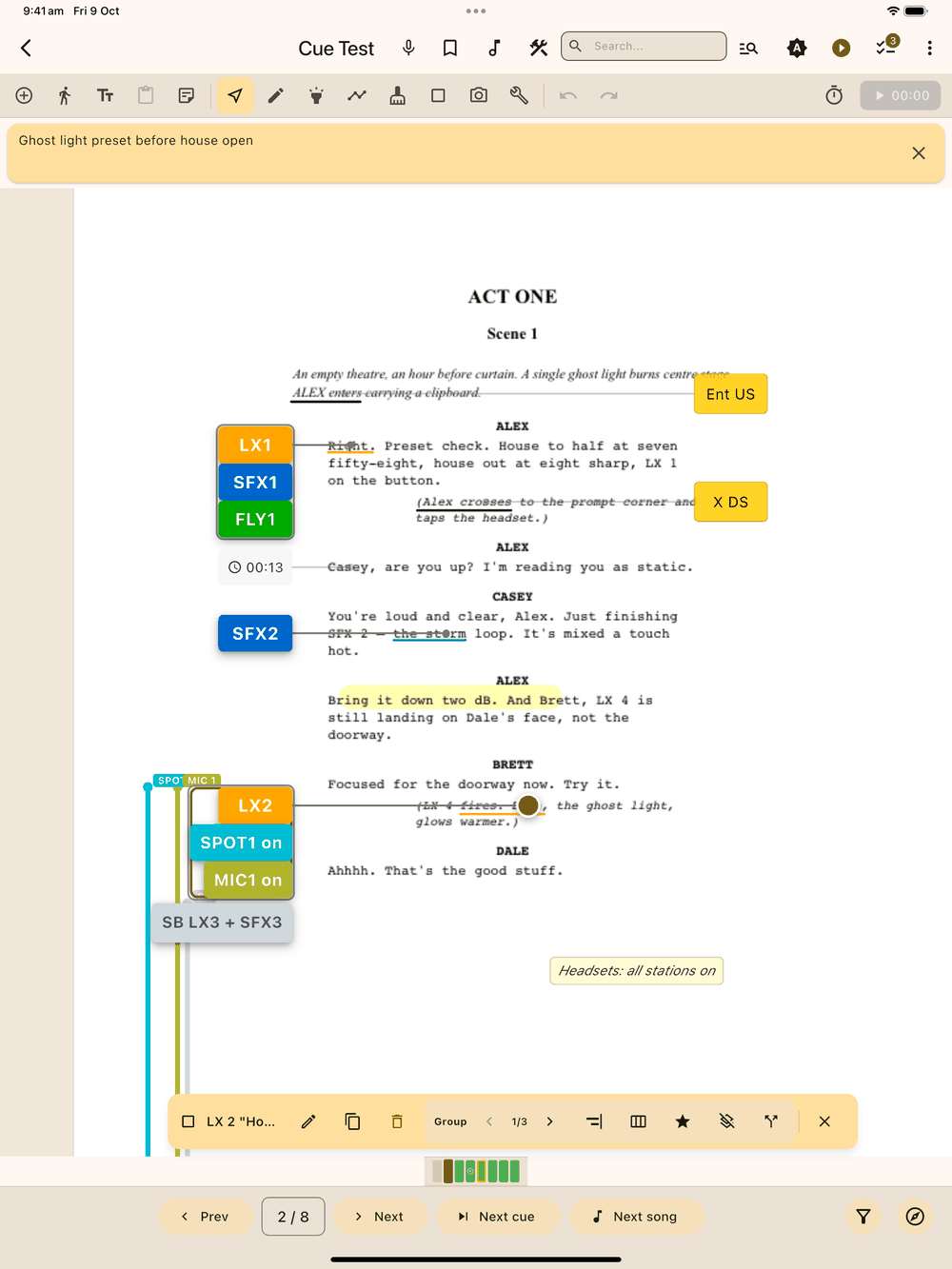
Cues, blocking, and timestamps stay tappable from any tool, so you don’t need to switch to Select just to move a cue while sketching. Strokes and shapes need Select mode because in the drawing tools every tap starts a new stroke or shape.
A selected element can be dragged to reposition it. Double-tap it (or use the menu bar’s Edit button) to open its properties.
Filtering the page
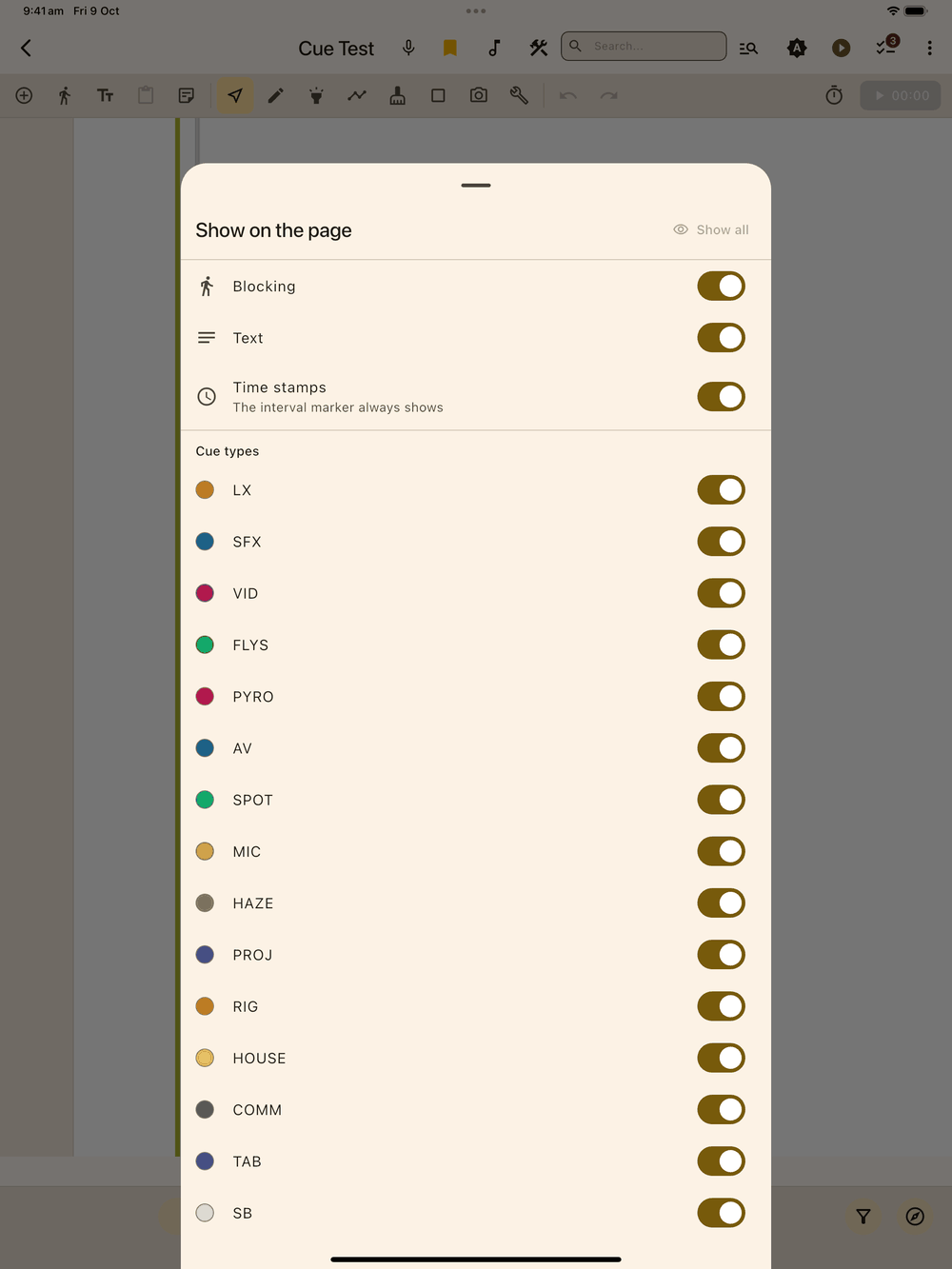
The filter button (a funnel) sits in the bottom bar, next to Navigate. Tap it to choose what shows on the page:
- Blocking
- Text (the boxes you add with Add Text)
- Time stamps
- each cue type you use, in its colour (the ones turned on in Setup → Cue Types)
Turn a switch off to hide that kind of mark-up. A hidden cue takes its line, word highlight and gutter trail with it. If you hide some of the cues in a group, the rest of the group still shows. Show all at the top brings everything back.
While anything is hidden the funnel is filled in and coloured, with a small number for how many kinds are hidden.
The filter only changes what you see. Nothing is deleted or changed, and moving, editing or deleting the things you can see leaves the hidden ones alone. Moving, copying or ungrouping a group takes its hidden cues with it. Hidden things can’t be tapped or dragged, and a pen stroke over a hidden cue simply draws. The interval marker always shows.
If you place or paste something of a hidden kind, for example an LX cue while LX is hidden, that kind is shown again and a message tells you, so the new cue doesn’t seem to disappear.
The strip of spot pills above the page still lists every spot or spot that’s on, even when that cue type is hidden, so you always know what’s running.
The filter carries over into show mode and resets when you leave the show.
Undo
Placing, moving, deleting, drawing and clearing a page can all be undone, up to 30 steps back, with the Undo/Redo buttons in the tool bar. The placement panels also have their own undo button so you can fix a misplaced element without leaving the panel.