Drawing
Four tool-bar categories cover freehand mark-up. Selecting a category turns its tool on straight away, so the panel you see is the tool you get.
Pen
Freehand ink. Press harder with the S Pen or Apple Pencil for a thicker line.
The left panel, from the top:
- Pen: plain black ink. Tap it to go back to the default pen.
- Whiteout: a thick stroke in the page colour, for covering up marks on the script.
- Colour: tap a swatch. These are the same colours as the Line panel, taken from your line styles in Setup.
- Thickness: pick from the list of sizes for this show.
- Type: Solid, Dashed or Dotted.
- Pressure: turn this off if you want every stroke the same width however hard you press.
- Touch: lets your finger draw as well as the pen.
- Edit: opens the Lines tab in Setup, where you change the colours and the thickness list.
Each button shows what’s set now. Picking a colour, thickness or type while Whiteout is on switches you back to the pen.
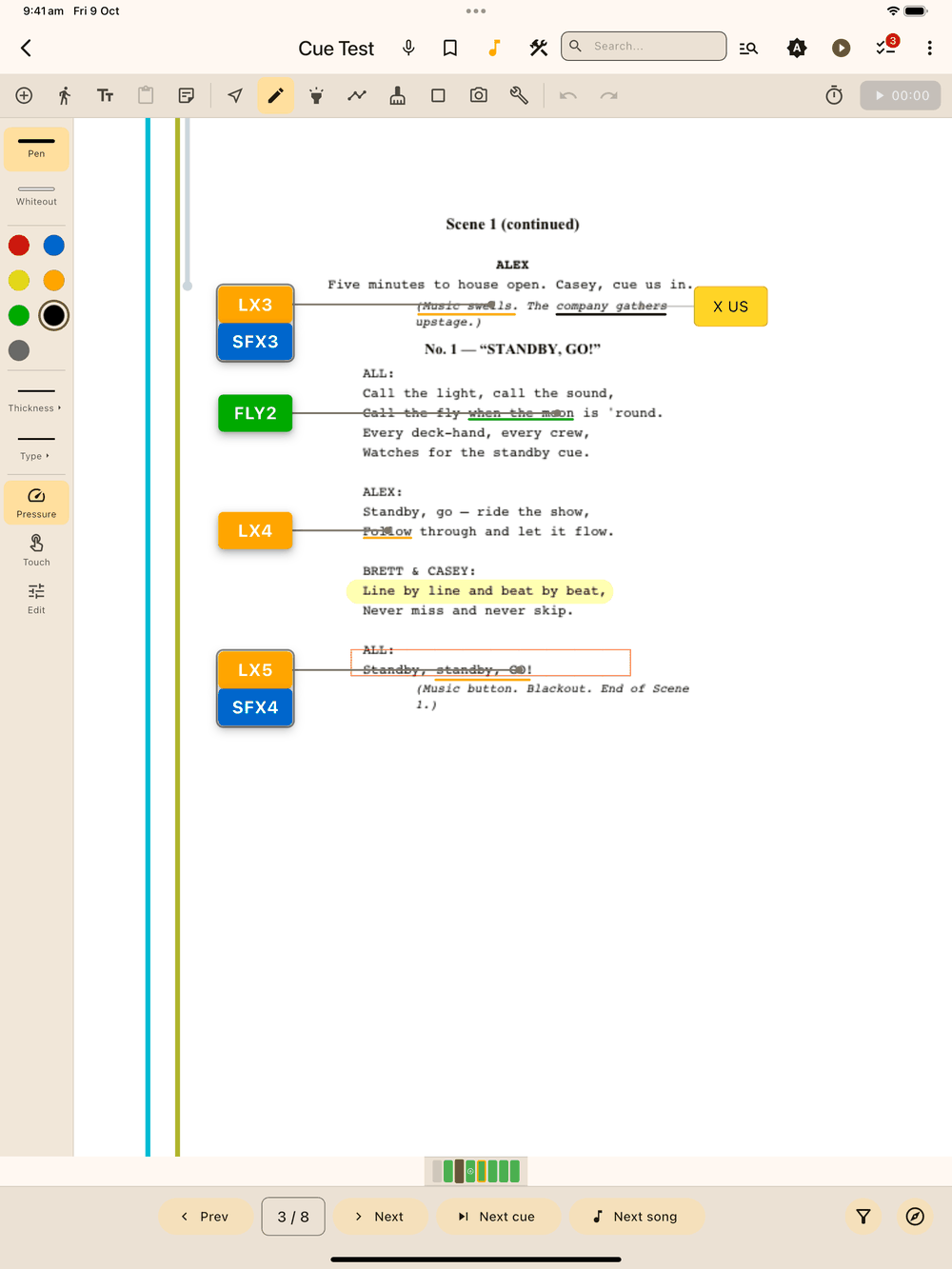
These settings are for the next stroke you draw. To change a stroke that’s already on the page, see Changing a stroke below.
Highlight
See-through marker strokes, like a highlighter pen. Pick from your highlight styles (colour, width, opacity) in the left panel. Touch lets your finger draw as well as the pen, and Edit opens the Highlights tab in Setup, where you manage the styles.
Line
Straight lines for leader lines, arrows and dashed rules. Drag from where the line starts to where it ends.
The left panel sets how the next line looks:
- Colour: tap a swatch. The swatches come from your line styles in Setup, one per colour.
- Start and End: tap to choose None or Arrow for each end. Put an arrow on both ends for a two-way arrow.
- Type: Solid, Dashed or Dotted.
- Thickness: pick from the list of sizes for this show.
- Arrow: the arrowhead size. It’s greyed out until Start or End is set to Arrow.
- Touch: lets your finger draw as well as the pen.
- Edit: opens the Lines tab in Setup.
Each button shows what’s set now, so you can check before you draw.
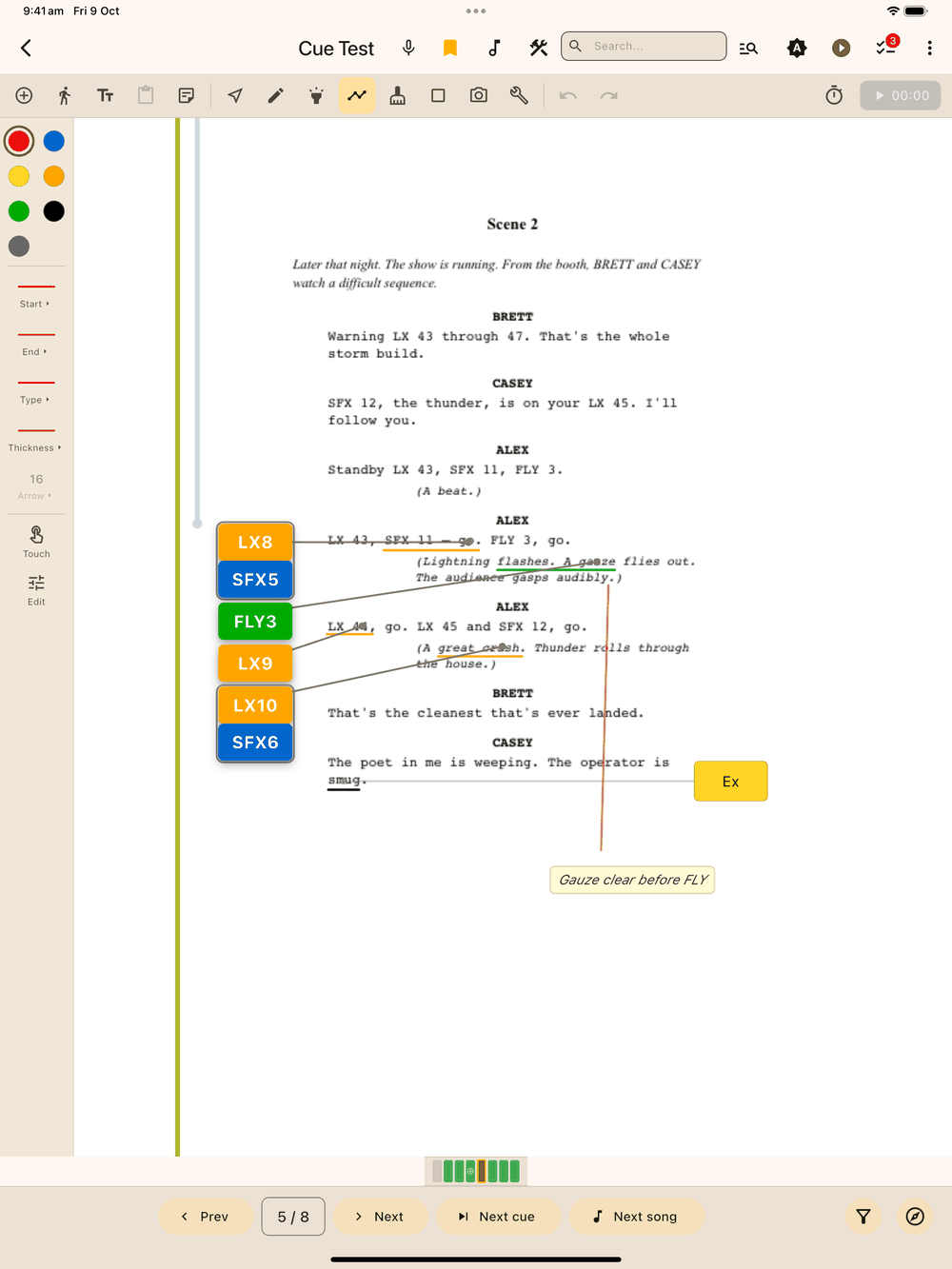
These settings are for the next line you draw. To change a line that’s already on the page, including its arrows, see Changing a stroke below.
You choose the sizes offered under Thickness and Arrow in Setup, on the Lines tab. The Styles page has the details.
Arrows, dashed lines and dotted lines print the same way in a PDF export as they look on screen.
Eraser
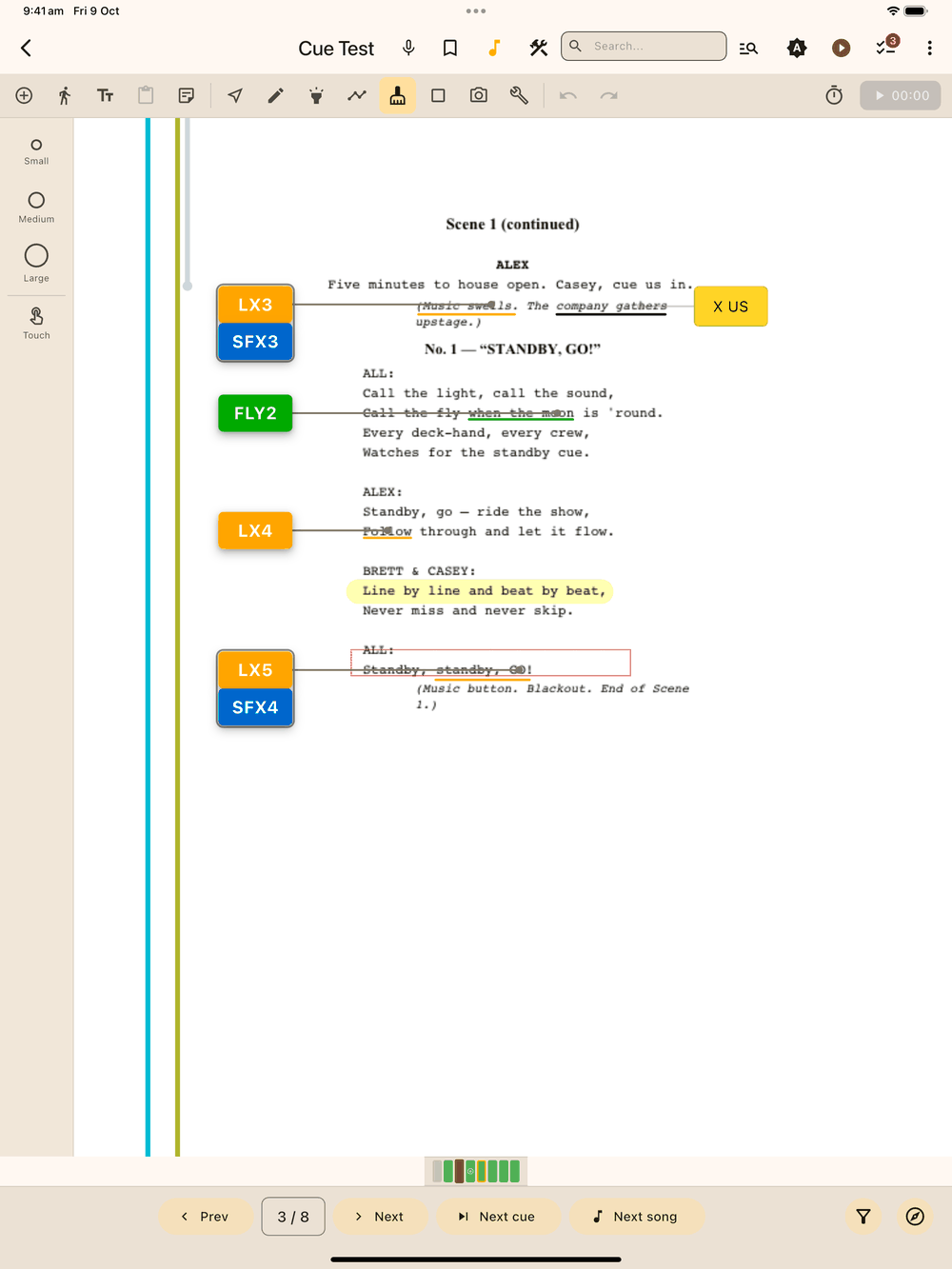
Rub out pen, highlight, whiteout and line strokes. Pick Small, Medium or Large in the left panel; a circle shows its reach as you move. The eraser takes out only the part of a stroke it passes over, so the rest of the stroke stays. A straight line goes in one go. Cues, blocking, notes and shapes aren’t affected. These shortcuts let you erase without switching categories:
- S Pen: hold the barrel button while drawing to erase for as long as you hold it, or flip the pen to use the eraser end if yours has one.
- Apple Pencil 2 or Apple Pencil Pro: double-tap the barrel while in a drawing tool to swap to the eraser, and double-tap again to swap back. This matches the iPad’s own default for that gesture.
Changing a stroke
Every stroke (pen, highlight, whiteout or straight line) can be changed after you’ve drawn it:
- Pick the Select tool (the cursor icon in the tool bar).
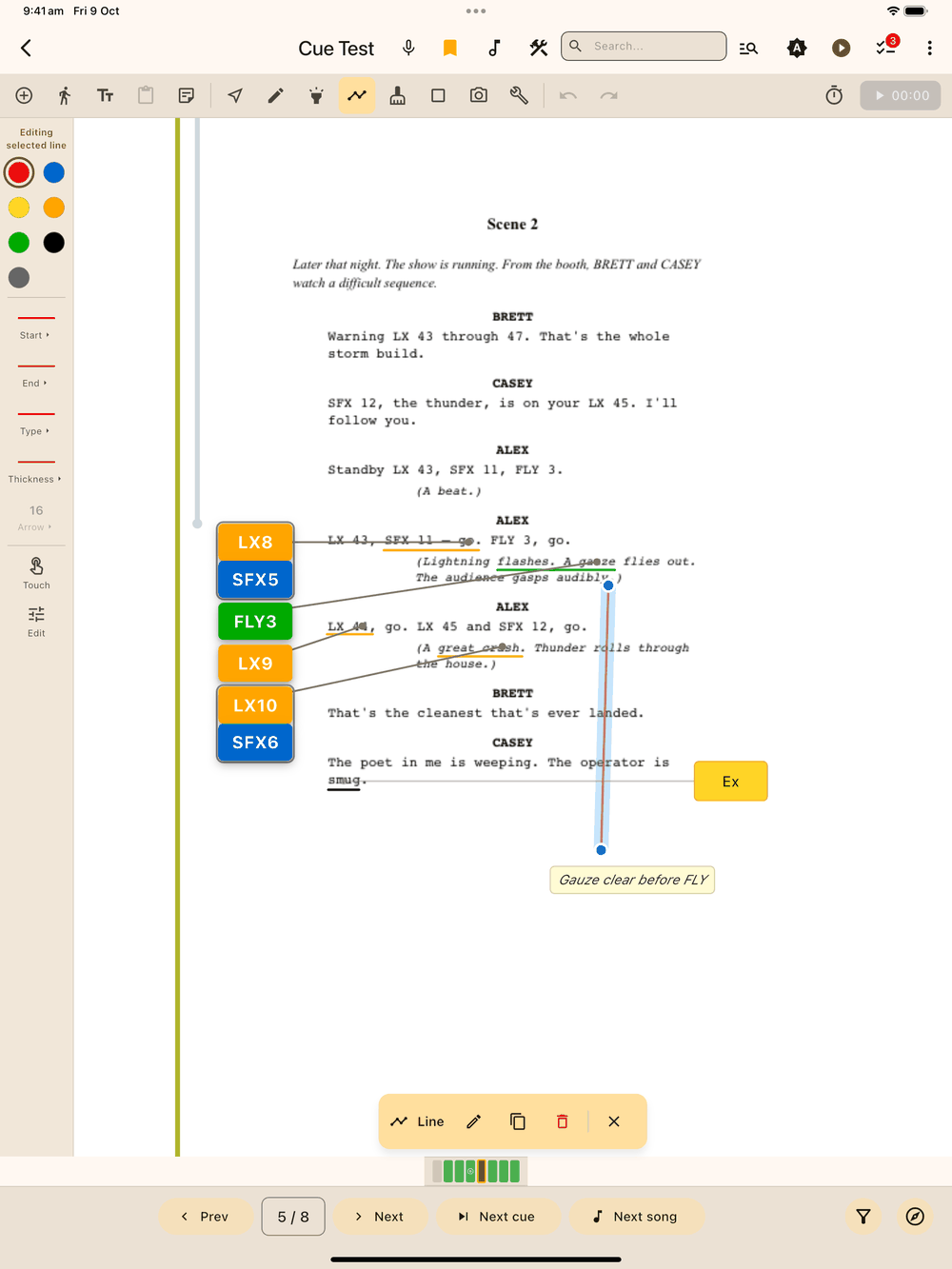
- Tap the stroke. The bar at the bottom of the screen shows Edit, Duplicate and Delete.
- Edit opens a panel for that stroke:
- Tap to pick a preset at the top: choose one of your line styles to give the stroke its colour, width, type and opacity in one go;
- Colour (whiteout has no colour to change);
- Width and Opacity sliders;
- for a straight line only: Dash pattern (Solid, Dashed or Dotted), Start and End (None or Arrow), and Arrow size, which is greyed out until the line has an arrow. Freehand strokes don’t have arrows.
Undo puts any change back.
If the Line panel is open while a straight line is selected, it reads Editing selected line at the top, and its buttons change that line instead of the next one you draw.
Stylus and touch
By default only the stylus (S Pen or Apple Pencil) draws. In the drawing tools a single finger does nothing, and two fingers pan and zoom. To draw with your finger, turn on the Touch toggle in the panel. Two-finger pan and zoom still work.
Pressing on a cue, blocking, time stamp or cue group moves it, even with a drawing tool picked: nothing is drawn or erased under it. To circle or underline a cue, start your stroke just outside it.
Your tool choice per category is remembered. Switch to cue placement and back, and the Line panel still has your last colour, arrows, type and thickness.