Cue Details by Type
Each cue category has its own set of fields, shown in the properties panel below the label.
On, off and X
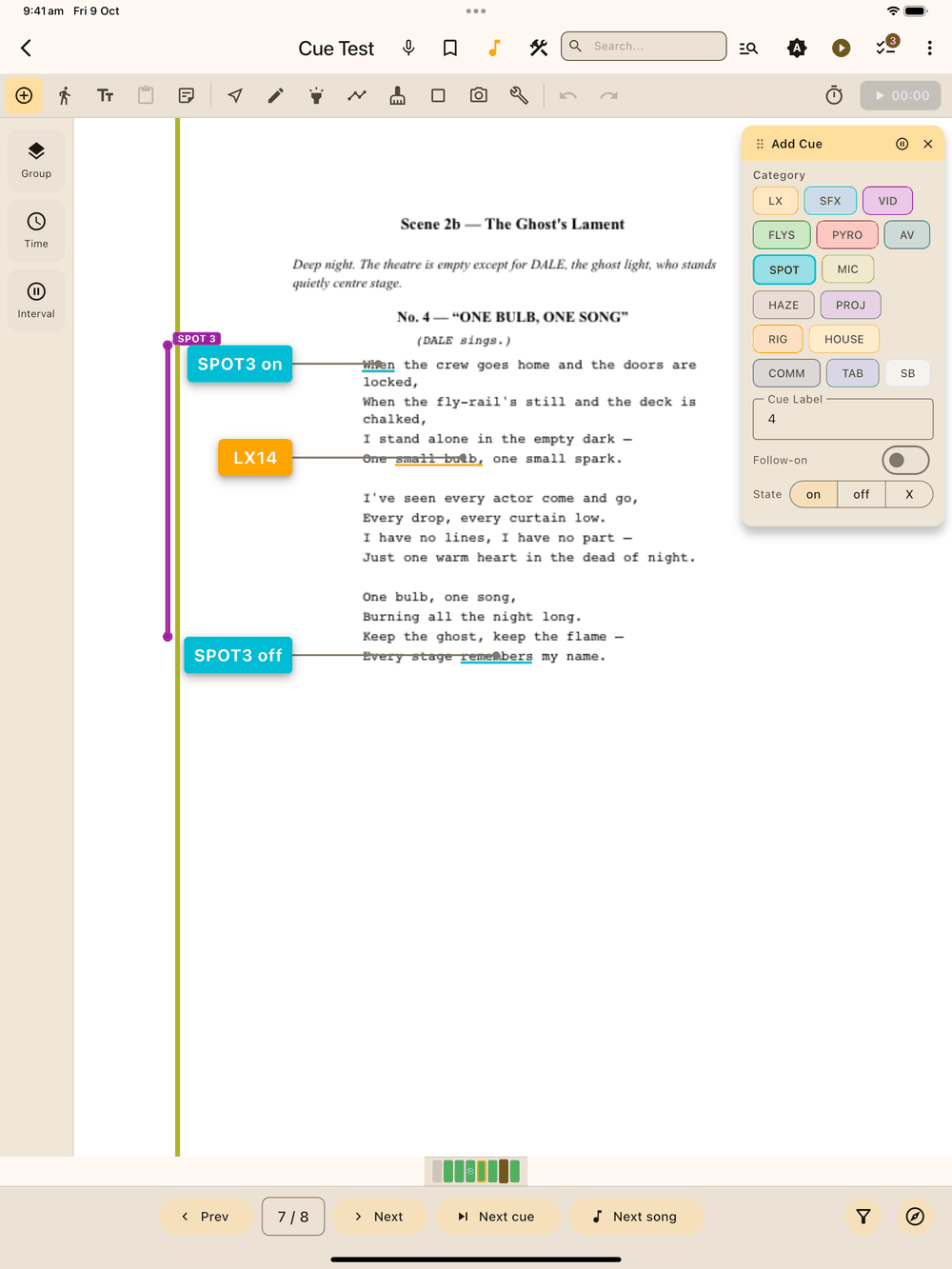
SPOT and MIC cues both have an on / off / X state, set with three buttons. In the Add Cue panel they sit below Follow-on, and in the Edit Cue panel they’re right under the Label. Pick one and the cue box reads “SPOT 1 on”, “SPOT 3 off”, “MIC 2 on”, or “SPOT 3 X” (a crossover between operators). That matches how you’d call a fade-up and fade-out, or a mic on and off, as a pair sharing one number.
The Add Cue panel fills the pair in for you. A new number starts as on. After you place an on or an X, the panel keeps the same number and switches to off. Once the off is placed it moves to the next number as on: SPOT 2 on, SPOT 2 off, SPOT 3 on, and the same for MIC. Lx1go works this out from the cues already in the show, so it’s still right after an Undo or when you come back to the panel. You can always change the number or state before you tap.
SPOT cues also have Operator, Character, Pick-up, Size, Colour, Intensity (0 to 10), Action and Fade time. MIC cues have a Mic # (1 to 99) instead: the body-pack or channel number that on/off pairs are matched on. See Mic State for the on/off picture across the whole show.
Spot pairing
Every page has a strip across the top with a pill for each follow spot that’s up at that point, from its “on” cue on an earlier page to its matching “off” cue later on. The pages in between carry the pill too, so you can always see which spots are up. An “on” with no matching “off” on any later page shows outlined in warning red, so you catch broken pairs before curtain.
Each pair also draws a coloured trail line down the cue margin of the page, from the “on” cue to the “off” cue, with a small pill naming it. You see it on the page in edit and show mode, as well as in the exported PDF. MIC cues draw the same kind of trail, in the MIC category’s colour and in a lane of its own so it never overlaps a SPOT trail running at the same time. MIC cues don’t appear on the Spot Pairing audit sheet below. Mic State does that job for mics.
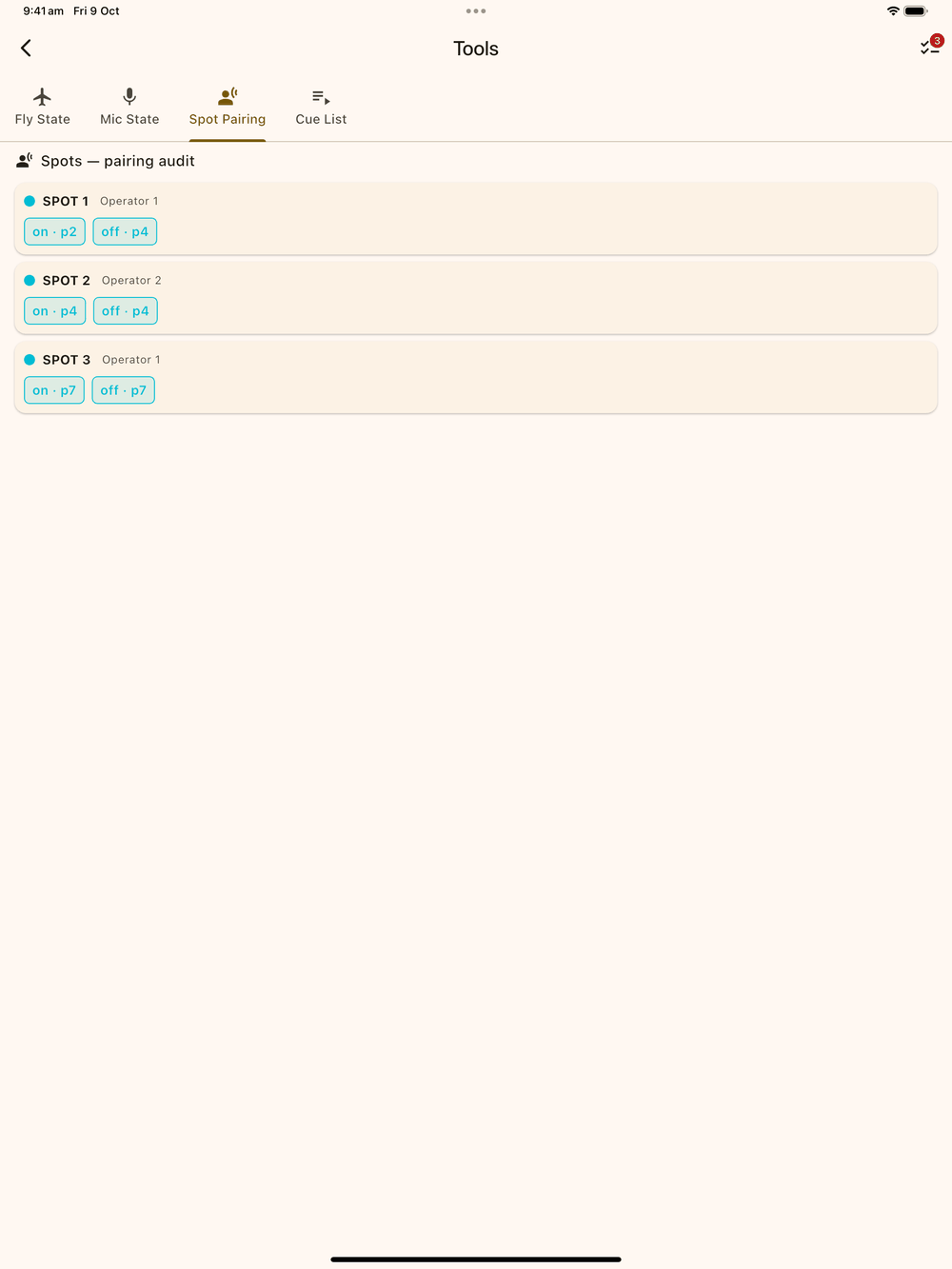
⋮ menu → Spot pairing opens an audit sheet listing every spot’s on, off and X cues in show order, with the same warning marker on any “on” that’s missing its “off”. Tap a cue chip to jump to its page.
Fields for each type
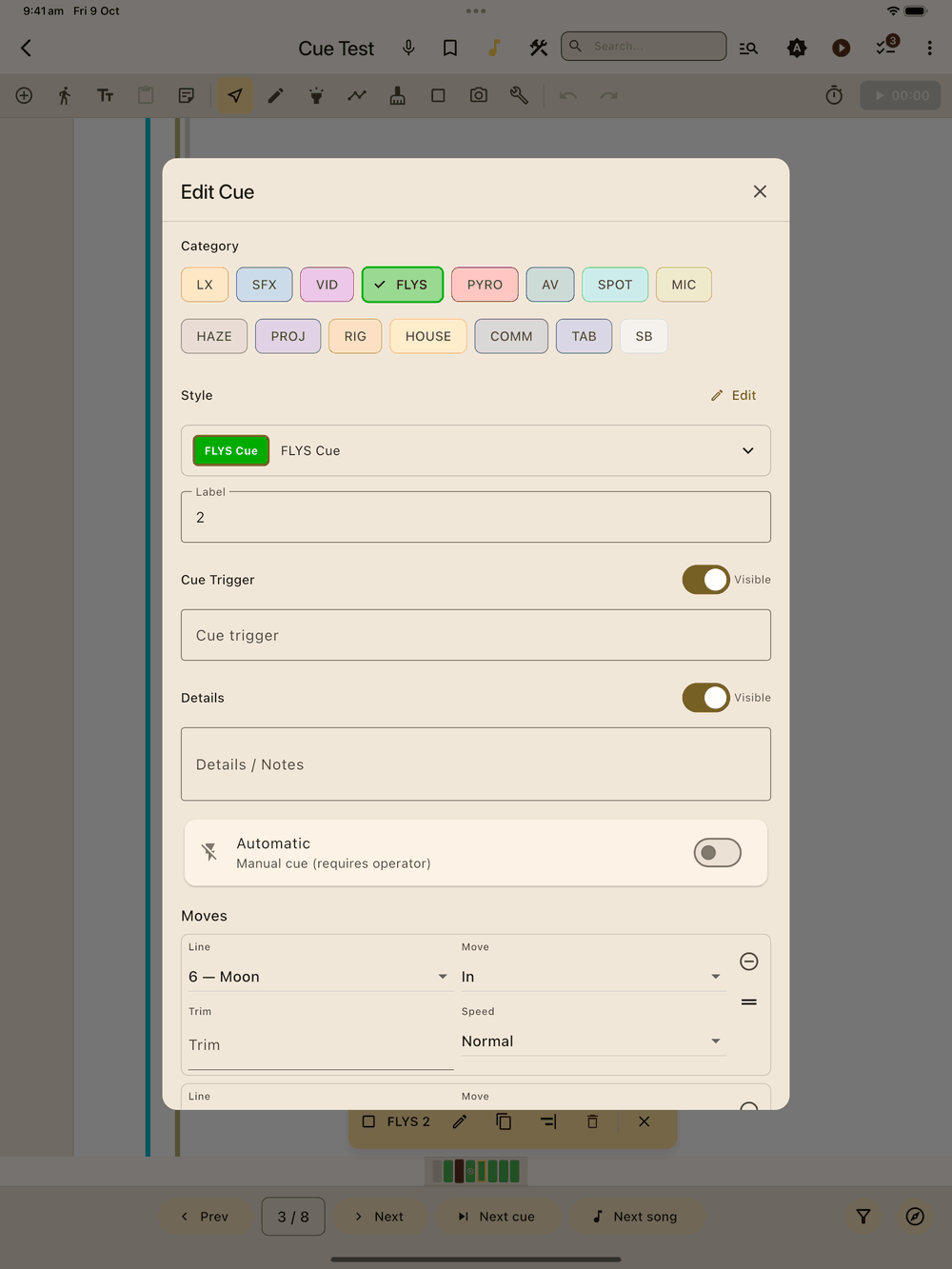
LX cues get a channel table (Ch / Colour / Intensity / Beam / Optics / Beam Effects). FLY cues get a moves table, with a Line picker that lists the show’s Fly Lines. SPOT cues get Spot #, Character, Pick-up, Size, Colour, Intensity (0 to 10), Action and Fade time. SFX, VID / AV, PYRO, HAZE, PROJ, RIG, HOUSE, COMM and TAB each have their own fields to suit them.
Table rows
Each row of a channel or moves table is a small card with two labelled fields per line, most important first. A FLY move reads Line | Move on top and Trim | Speed underneath. An LX channel reads Ch | Colour, then % | Beam / Optics, then Beam Effects. Long fly line names are cut short with “…” in their field, and the full name shows when you open the list. Remove row (asks first) and the drag handle for reordering are on the right of each card. Add row is below the table.
LX channel colour picker
Tap the coloured circle in a channel row (or the empty outlined circle) to open the colour picker. It has several ways to set a colour:
- Gel: pick from the show’s Gel library. The row shows the gel name once you’ve chosen one.
- RGB: three number fields, 0 to 255 by default. Turn on “as %” to type 0 to 100 percent instead, for boards that show percentages.
- HSI: Hue (0 to 360°) and Saturation (0 to 100%) sliders, with number boxes for exact values from the designer.
- CCT: colour temperature from 1000 to 12000 K for tunable-white looks. Use the slider or type a value. A label tells you where you are (warm white, neutral, daylight or cool).
- Intensity: a 0 to 100% slider with a number box, at the bottom. It works with every mode and fills in the row’s intensity, so the picker sets both colour and intensity at once.
A preview swatch shows the colour at the chosen intensity, so you can see how bright the cue will look. OK saves the colour and intensity to the row. Cancel throws the change away.
Beam notes and fly lines
Beam / Optics and Beam Effects are free-text columns for the things the colour picker doesn’t cover: gobo names, iris or zoom settings, prism spin speed, whatever the designer wants written down.
FLY cues always show the current fly line name. Rename a fly line in the Fly Lines tab and every FLY cue that uses it updates straight away. If a fly line a cue uses is deleted, that row shows ⚠ removed () in red so you can fix it. The move isn’t silently thrown away.