Blocking
Blocking is recorded as yellow notes on the page (Ent PS, X To DS OP, [CJ] Rise). Lx1go composes them from buttons so you rarely need the keyboard.
The Add Blocking panel
Tap the Blocking button (the walking figure ) in the tool bar. While the panel is open, the left rail shows a Time button for dropping a timestamp without leaving blocking placement (see Text & Timestamps). The panel builds the blocking text from your selections, previewing it at the bottom:
- Actor field: the narrow box to the left of the modifier chips.
Type an actor’s initials (e.g.
CJ) and the composed label gains a[CJ]prefix. Leave blank for a blocking with no named actor. Tap All under the field to fill it withALLfor company-wide blocking; the small ✕ in the field clears it. - Modifier chips, in three rows:
- Row 1: Ent (enter), Ex (exit), mutually exclusive.
- Row 2: ∫ (sit / down), Rise, mutually exclusive.
- Row 3: X (cross), To, mutually exclusive. Selecting To prefixes the position with To … (X To DS PS); it un-ticks itself after each placement since “To” describes one move.
- Position grid: a 3×5 stage map (upstage at the top). The two intermediate columns (OP/C, P/C on the OP template; SR/C, SL/C on SL) sit between the sides and centre for finer placement. One position at a time; tap again to clear. Edge buttons above and below the grid select a whole region: US across the top, DS across the bottom, and Full Stage for a whole-stage move. Every label on this grid, and every modifier chip label, is customisable in Settings; blank a field to hide that button.
- Custom text: anything the buttons can’t say (a character name, “slowly”). It’s added to the end of the composed text and stays there between placements until you clear it.
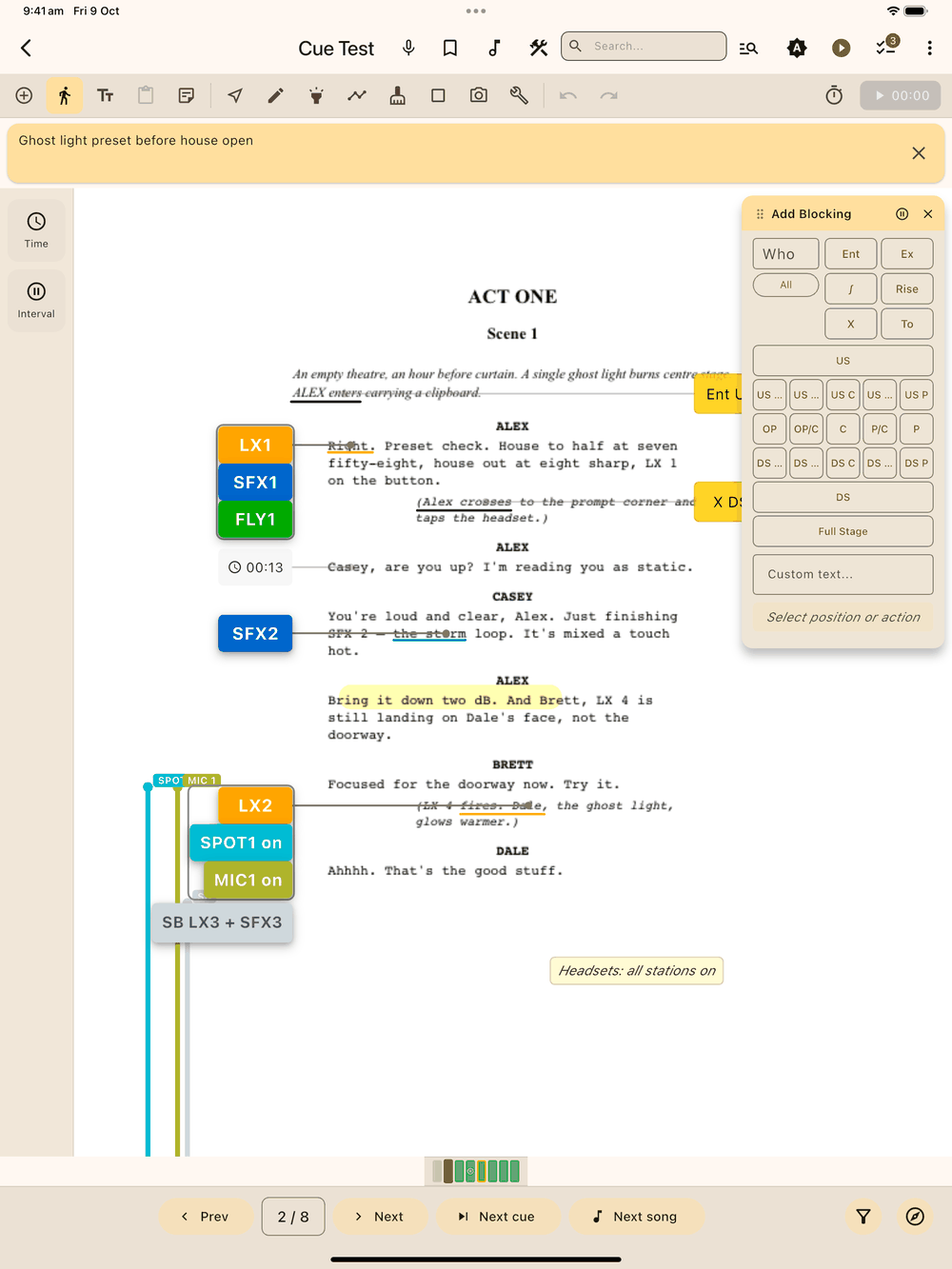
Then tap the script where the move happens. The blocking box centres on your tap, snaps to its page edge (opposite side to cues), and connects with a faint straight line.
The first time you place a blocking, a card at the top of the page reminds you to tap the script; tap Got it and it won’t show again. Your selections stay put after placing, so repeating Ent PS for a crowd scene is just tap, tap, tap. When you reopen the panel it starts from the last blocking you placed in this show during this session.
The panel header has a drag handle , a pause button and a close button. Pause (the button flips to play ) stops page taps from placing blocking, so you can select, scroll or tidy the page without closing the panel. Drag the panel by its header and on release it snaps to the nearest of 8 positions around the edge (the four corners, top-centre, bottom-centre, left-centre, right-centre) and reopens there next time. Docked at top-centre or bottom-centre, Add Blocking switches to a flat layout: two columns side by side, modifiers (actor field, chips, custom text) on the left and the stage-position grid on the right. Every other position keeps the taller single-column layout.
A blocking is placed when your finger lifts off the page. If you bring in a second finger to pinch-zoom while Add Blocking is open, the tap is cancelled and the pinch zooms the page without dropping a stray blocking. As with cues, a tap in the gutter (the margin outside the show’s left/right axes) never drops a new blocking: it selects an existing element there if your tap lands near one, otherwise it does nothing. Anchors only drop in the text area between the two axes.
Blocking lines
Blocking lines are faint and straight so they stay easy to read next to cue lines. Line opacity, width and colour come from the blocking’s style preset (Blocking by default). Edit that preset in Setup → Styles to adjust every blocking that uses it at once. Turn a single blocking’s line off with the Connecting Line switch in its properties.
Blocking styling
Each blocking has its own style preset, like cues do. If you want all Act 2 blocking in a distinct colour so it stands out during rehearsal notes, open the blocking’s properties dialog and tap the Style tile to pick a different preset. If the preset’s Word highlight is anything other than None, blocking anchored on a recognised word gets the same word highlight cues do. See Styles.
Overlap-safe placement
If your tap would drop a new blocking on top of an existing one in the same column, Lx1go nudges it up or down (whichever keeps the anchor closer to your tap) into the first clear slot. Blocking in the opposite column is ignored, so the two sides can share the same line of the script without shifting.
Update Selected
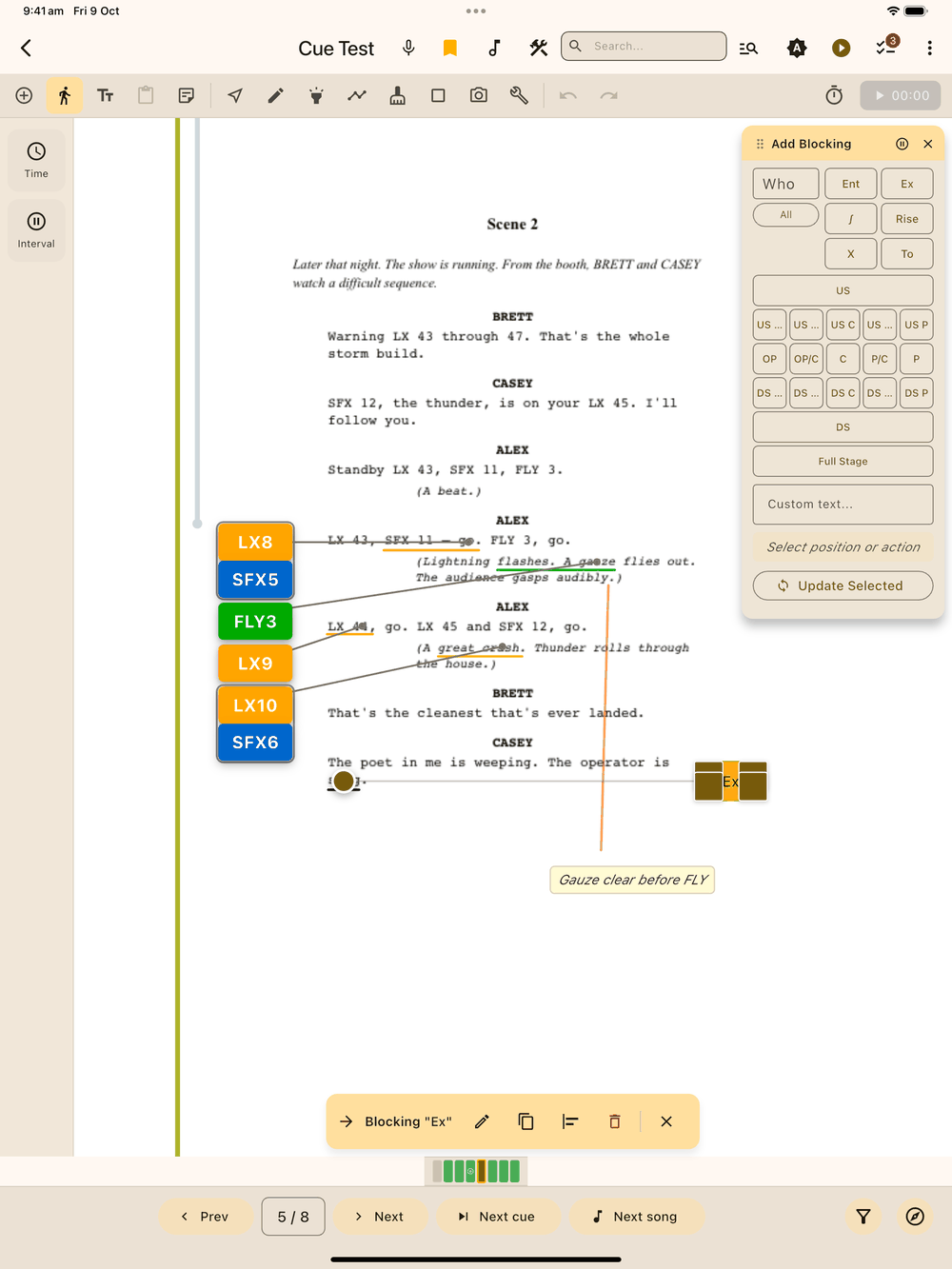
Fix an existing blocking by tapping it on the page while the Add Blocking panel is open, adjusting the buttons, and tapping Update Selected . The blocking is updated in place with the new text and button choices, keeping its style and connecting line.
Editing any blocking
There are two ways in:
- From the bottom menu bar, tap a blocking to select it, then Edit . The Edit Blocking dialog opens with the style picker and the same actor field, modifier chips, position grid and custom text field. Changes apply live, and are kept even if you close the dialog right after typing. Copy copies the blocking, button choices included, ready to paste (see below); Delete confirms then removes.
- Double-tap a blocking on the page to open the same dialog directly.
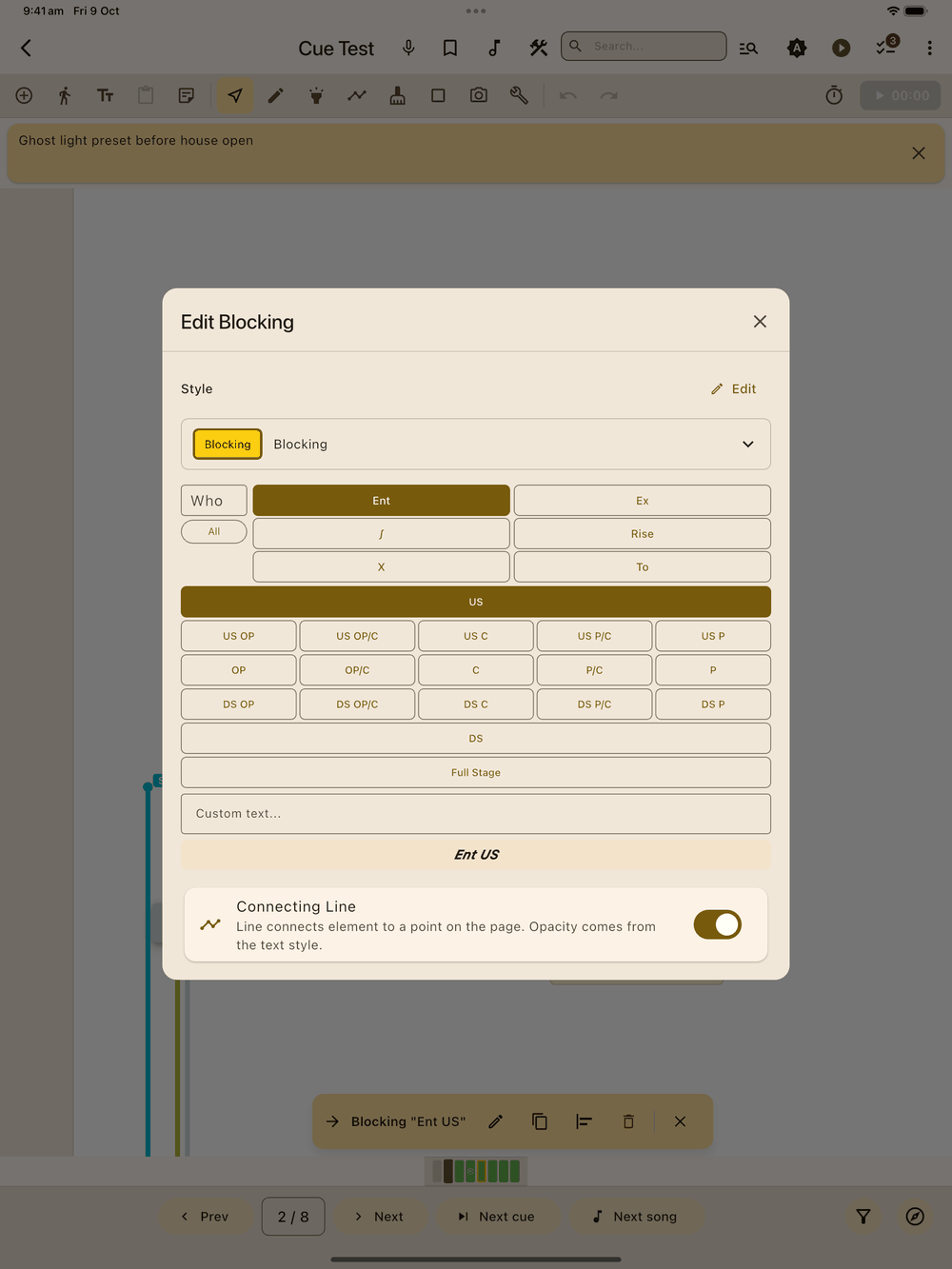
The button choices (actor, modifiers, “To”, position, custom text) are saved with the blocking, so reopening it (from Edit, double-tap or Update Selected) shows exactly the buttons you last picked. Blocking from older versions of the app is read back from its text instead.
Compact view
With Compact view on (Setup → Settings), blocking is drawn as a slim strip of its words in the blocking text colour, against the script on the blocking side. Light text goes on a dark strip; dark text goes on the blocking style’s own colour, or on a light strip if the style has no colour. Long blocking wraps onto more lines to fit the margin. If you’ve moved a blocking into the script, its strip is never wider than its normal box.
New blocking lines up with the line you tap, just like a normal blocking box, and never lands on top of something already on the page, whether Compact view is on or off.
Tap a strip to select it, or drag it up or down to move it. Dragged sideways, it stays in the margin, and the full box still fits there when you turn Compact view off. There are no resize handles in Compact view. Add Text notes keep their usual box, and PDF exports print normal blocking boxes.
Copy and paste
Reusing a blocking on a later page, or in another show? Tap it to select it and tap Copy on the bottom menu bar. Then tap Paste in the tool bar (under More tools on narrow windows), or press and hold an empty part of the page and choose Paste, and tap the script where it should go. A finger, S Pen or Apple Pencil all work the same, and a tap in the gutter is ignored.
The pasted blocking keeps its actor, modifiers, position and style. Its connecting line comes along with the same shape, so drag the end onto the right word once it lands. Text notes made with Add Text can’t be copied this way; use Duplicate for those (see Text & Timestamps).
See Cues for copying cues the same way.