Backup & Sharing
Your prompt book is weeks of work, so Lx1go keeps it safe in several ways.
Backing up a show
There are three ways to start a backup:
- From the home screen: long-press a show → Backup.
- Inside a show: the app-bar ⋮ menu → Backup show.
- From the Export screen (⋮ menu → Export): the Export backup (.lx1) button. Use it when you’re already there setting up a PDF or cue-list export and want a backup too, without going back to the show’s own ⋮ menu.
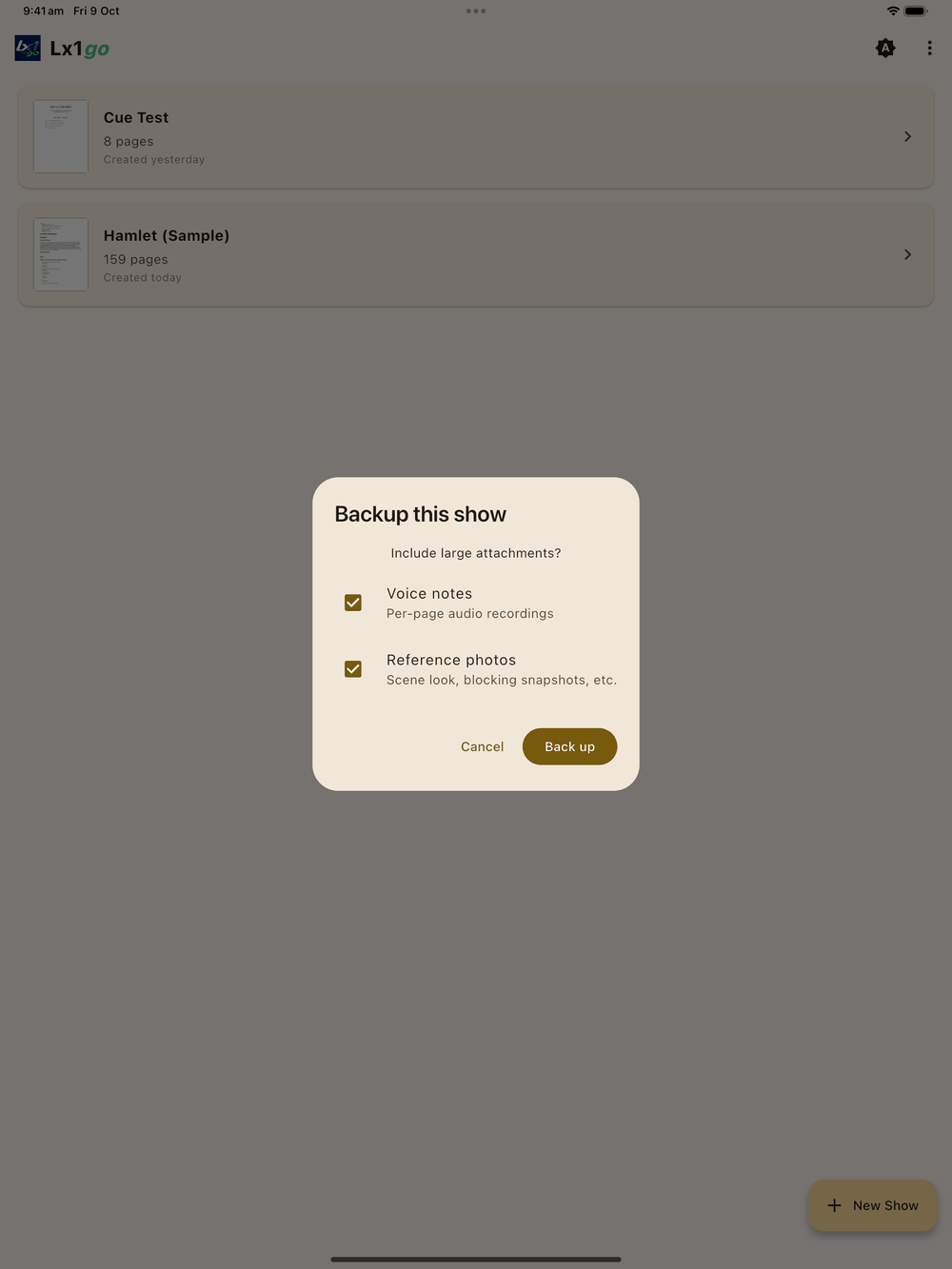
First Lx1go asks whether to include the large attachments:
- Voice notes: the recordings on each page.
- Reference photos: scene photos and blocking snapshots.
Both are ticked to start with. Untick them for a smaller file you can email; the script, cues, drawings and notes are always included.
While it works, a progress bar shows which page it’s on (for example “Page 42 · 35%”), then Compressing… at the end. Keep Lx1go open until it finishes.
When it’s done, Lx1go opens the same Save/Share/Open sheet every export uses:
- Save to… opens the tablet’s file picker (Downloads, Drive, a USB stick, wherever you like). Pick a folder and the file is saved there.
- Share… hands the file to the tablet’s share sheet (email, AirDrop, another device on the same network, cloud apps).
- Open hands the
.lx1straight to whatever app your tablet has set up for it. That’s rarely useful for a.lx1, but it’s there if you have an archive tool that opens them. If nothing can open the file, you get Share instead.
Back up each show you care about. There’s no all-at-once backup, so each file is exactly one prompt book. A backup is also how you move a prompt book to another tablet or hand it over to a deputy.
Restoring
You can restore from two places:
- Home screen ⋮ → Restore from Backup, which is the one to use when you have no shows loaded yet.
- Inside a show, ⋮ → Restore from backup.
You can also tap a .lx1 file in a file manager (or open one from an
email attachment or the share sheet):
- Android offers Lx1go as an app that can open it.
- On iPad and iPhone, tapping a
.lx1in Files, Mail or Messages, or using Share → Open in Lx1go, starts the same restore. (Lx1go is set up to open the “Lx1go Show Backup” file type.)
Lx1go reads the show name from the backup and asks you to confirm or rename before restoring. If a show with that name already exists, it asks whether to overwrite it.
Back up before production week, and any time a prompt book has changed a lot.
Automatic page versions
As you work, Lx1go keeps the last seven saves of each page. Every page has its own list, so restoring one page leaves the rest of the show alone.
Use them to get back a cue you deleted by accident or a page you
cleared too early. Don’t treat them as a backup. Every change you make
saves the page, so on a busy page seven saves may only cover the last
few minutes, and they’re stored on the tablet with the show: lose the
tablet or delete the show and they’re gone too. To back up properly,
use Back up above and keep the .lx1 file somewhere else.
Restoring a page
- Go to the page you want to put back.
- Tap Tools on the tool bar, then History .
- The History sheet lists the page’s saved versions, newest first. Each row shows when it was saved and what was on the page, for example “12 cues, 3 blocking, 24 strokes”.
- Tap Restore on the version you want and confirm.
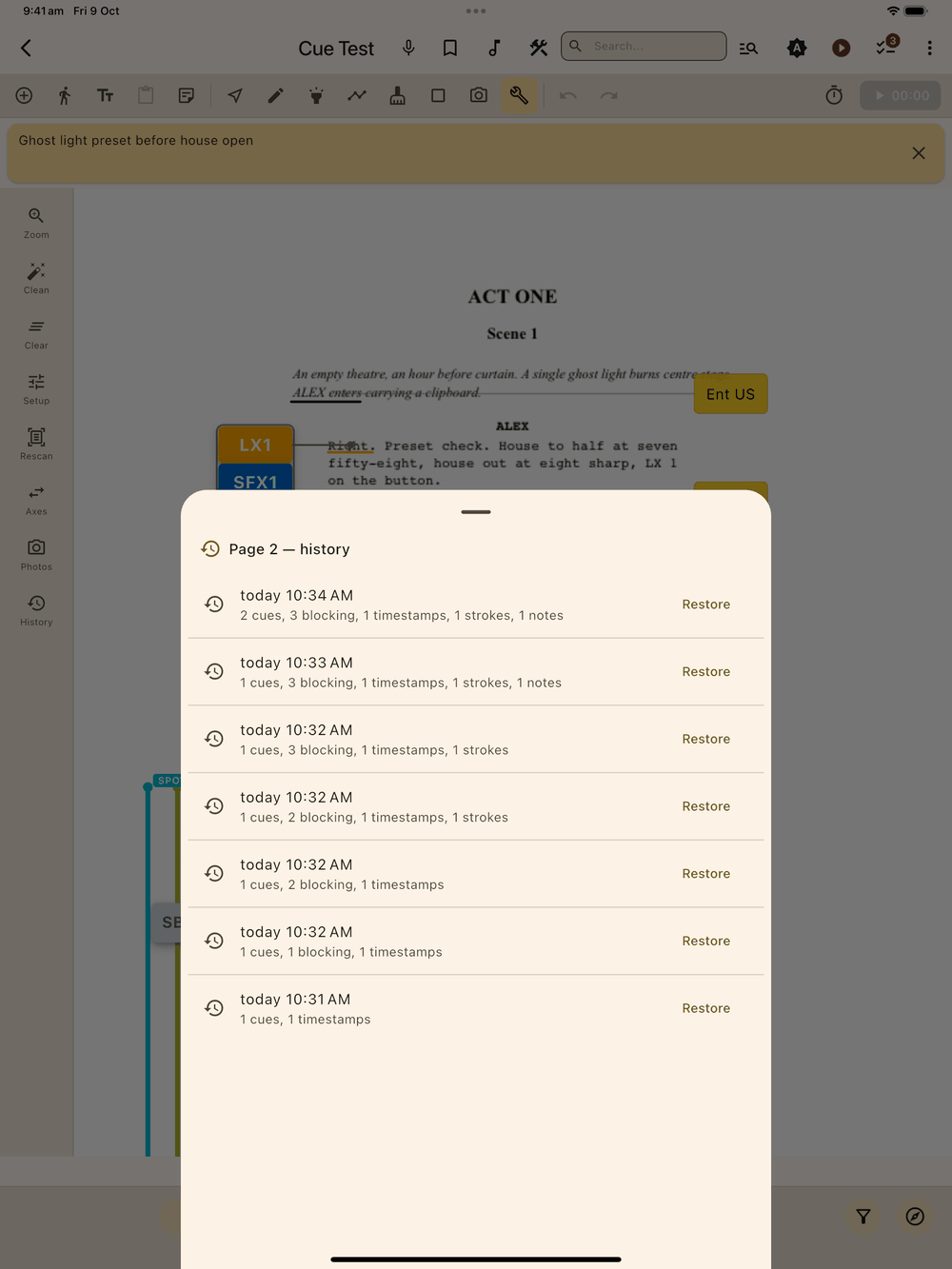
The page goes back to that version. What was there a moment ago becomes the newest entry in History, and Undo works too, so you can change your mind.
History covers what you added to the page: cues, blocking, time stamps, text notes, shapes, drawing and page notes. It doesn’t change the page image. To put back a page image after cleaning it, use Revert in the Tools category.
Daily show copy
The first time you edit a show each day, Lx1go also keeps a copy of the whole show and deletes it a day later. There’s no way to restore it from inside the app, so back up the show yourself.
What’s not undoable
Undo covers what’s on the page (elements, drawings, clears). Deleting a show, deleting pages and restoring over existing data are permanent. Export first when in doubt.